
In this article
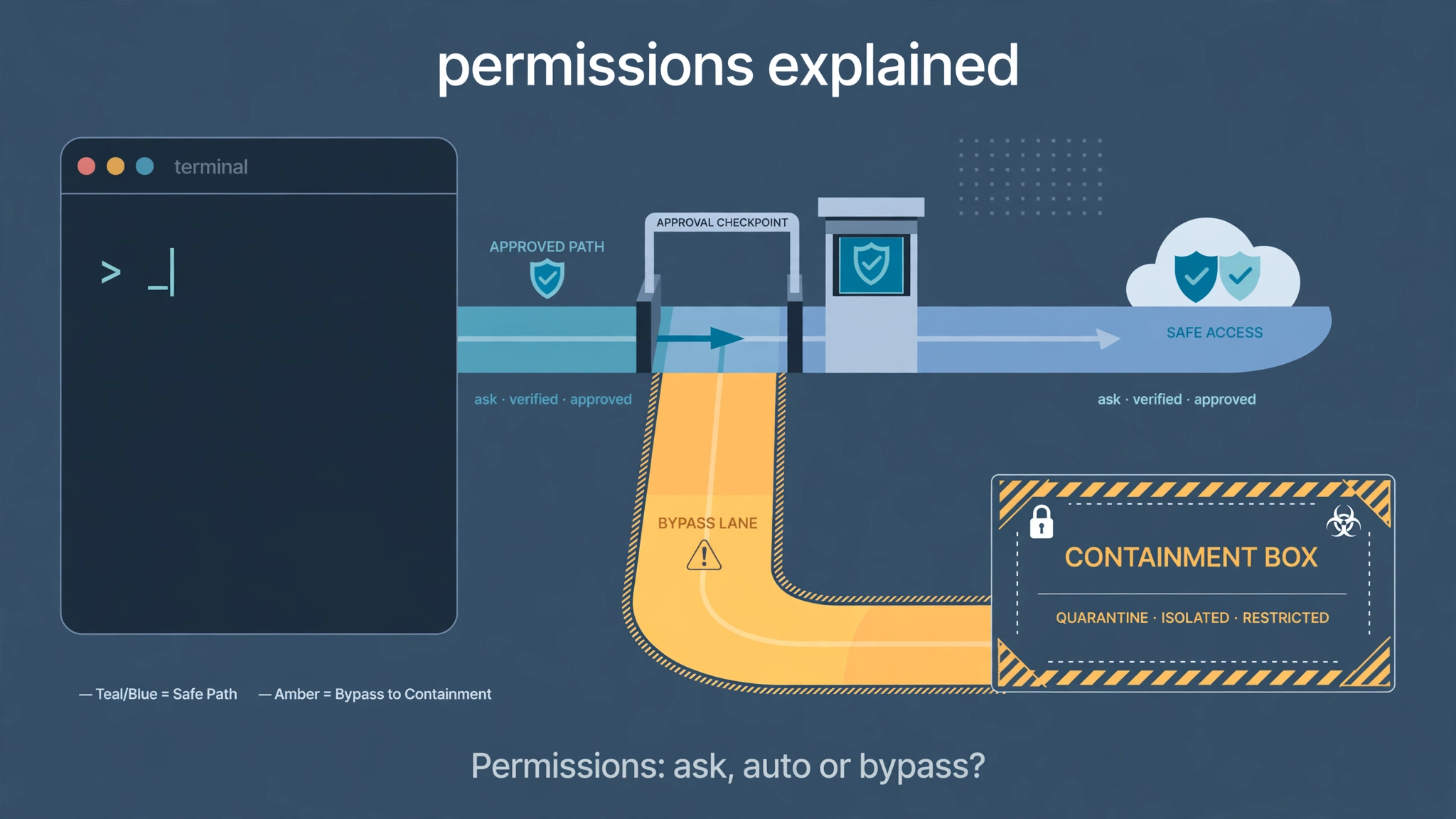
Claude dangerously skip permissions is the shorthand developers use for the --dangerously-skip-permissions flag in Claude Code, Anthropic’s coding agent. Started with that flag, Claude Code runs in bypassPermissions mode: it edits files, runs shell commands and calls tools without stopping to ask you first. The current official documentation still lists the flag, spells it exactly that way, and attaches a blunt warning: use the mode only inside isolated environments such as containers or virtual machines, where Claude Code cannot damage your host system.
That single sentence is the answer most readers need. The rest of this guide explains the details that tutorials written a year ago often get wrong. Claude dangerously skip permissions is no longer the only route to fewer prompts, it does not switch off every safeguard, and for most everyday work a narrower setting does the job with far less exposure. The guide was researched against Anthropic’s Claude Code documentation on November 9, 2026, and every command shown comes from that documentation.
Table of Contents
What Does “Claude Dangerously Skip Permissions” Mean?
People type claude dangerously skip permissions into a search box for one of three reasons. Some saw the flag in a tutorial and want to know what it does. Some are tired of approval prompts and hope the flag is a quick fix. Others hit the error message about root privileges and want to know why the flag refused to start.
In every case the phrase points at the same thing. Claude dangerously skip permissions refers to Claude Code’s most permissive permission mode, which the documentation names bypassPermissions. The documentation describes it as a mode that disables permission prompts and safety checks so tool calls execute immediately, including writes to protected paths. The word “dangerously” in the flag name works as a built-in warning that you are accepting responsibility for whatever Claude does next.
Two clarifications matter early:
- It is a permission setting, not a capability upgrade. Claude dangerously skip permissions does not make the model smarter, faster or more accurate. It only removes the pause where a human approves an action, which is the whole point of claude dangerously skip permissions and its main risk.
- It is not a fix for permission errors. If a command is being denied, a deny rule or a mode restriction is usually the cause, and the flag may not change that, as the section on what it still doesn’t skip explains.
The Current Command, Verified Against the Docs
The syntax in the permission modes documentation is:
bash
claude --dangerously-skip-permissionsRun it in your terminal from the project folder you want Claude Code to work in. The documentation states that this flag is equivalent to the explicit form:
bash
claude --permission-mode bypassPermissionsSo the option has not been renamed or retired. If you see an older tutorial that uses a different spelling, treat it as unreliable and use the exact text above.
There are also two related ways the documentation lets you reach the same mode:
- Setting
permissions.defaultModeto"bypassPermissions"in your user settings, a settings file passed with--settings, or managed settings. - Starting with a companion flag that makes the mode available without turning it on:
bash
claude --allow-dangerously-skip-permissionsThe --allow- variant adds bypassPermissions to the Shift+Tab mode cycle without activating it. That is a more careful way to keep claude dangerously skip permissions within reach: you start in a normal mode and consciously switch only when the situation justifies it.
Where the flag works and where it doesn’t
The documentation describes several surfaces, and behavior differs between them:
- Terminal (CLI): the flag works as described above.
- VS Code extension: the mode does not appear until you enable the Allow dangerously skip permissions toggle in the extension settings.
- Desktop app: the Allow bypass permissions mode toggle controls it on Pro and Max plans, and organization policy controls it on Team and Enterprise plans.
- Cloud sessions on the web: Bypass permissions is not available, and a repository’s checked-in settings cannot start a cloud session in that mode.
- Remote Control sessions: you cannot select Bypass permissions from the app.
If you use the browser-based product, our guide to Claude Code on the web covers how those sessions work, which is a very different safety situation from your own laptop.
How Normal Claude Code Permissions Work
To judge what claude dangerously skip permissions removes, you need to know what it removes it from. In Manual mode, which the configuration calls default, Claude Code starts with read-only access. When it needs to edit a file, run a test or execute a command, it asks you first, and you choose whether to approve once or allow the action from then on.
Anthropic’s permissions page lays out the tiers:
| Tool type | Approval required in Manual mode |
|---|---|
| Read-only (file reads, Grep) | No, inside the working directory and additional directories |
| Bash commands | Yes, except a built-in set of read-only commands |
| File modification | Yes |
| Web fetch | Yes, except preapproved documentation domains |
| Web search | Yes |
The built-in read-only set includes everyday commands such as ls, cat, grep and read-only forms of git. Two more boundaries sit underneath the prompts. In Manual mode Claude Code can only write inside the folder where you started it and its subfolders, and it asks before reading paths outside that boundary.
One point is easy to miss: permission rules are enforced by Claude Code itself, not by the model. Writing “never delete files” in your prompt or in CLAUDE.md shapes what Claude tries to do, but it does not change what the program allows. Rules and modes do.
Allow, ask and deny rules
You can view and manage rules with the /permissions command. There are three kinds:
- Allow rules let a tool run without manual approval.
- Ask rules force a confirmation every time.
- Deny rules block the tool.
Rules are evaluated in the order deny, then ask, then allow, and the first match decides. A broad deny rule cannot be carved back open by a narrower allow rule. Rule syntax is Tool or Tool(specifier), for example Bash(npm run build) for one exact command or Read(./.env) for one file.
Trust prompts
Claude Code also verifies trust. First-time codebase runs and new MCP servers require trust verification, and project-level permissions.allow rules from a repository only take effect after you accept the workspace trust dialog for that folder. The security documentation notes that trust verification is disabled when running non-interactively with -p.
The Six Permission Modes
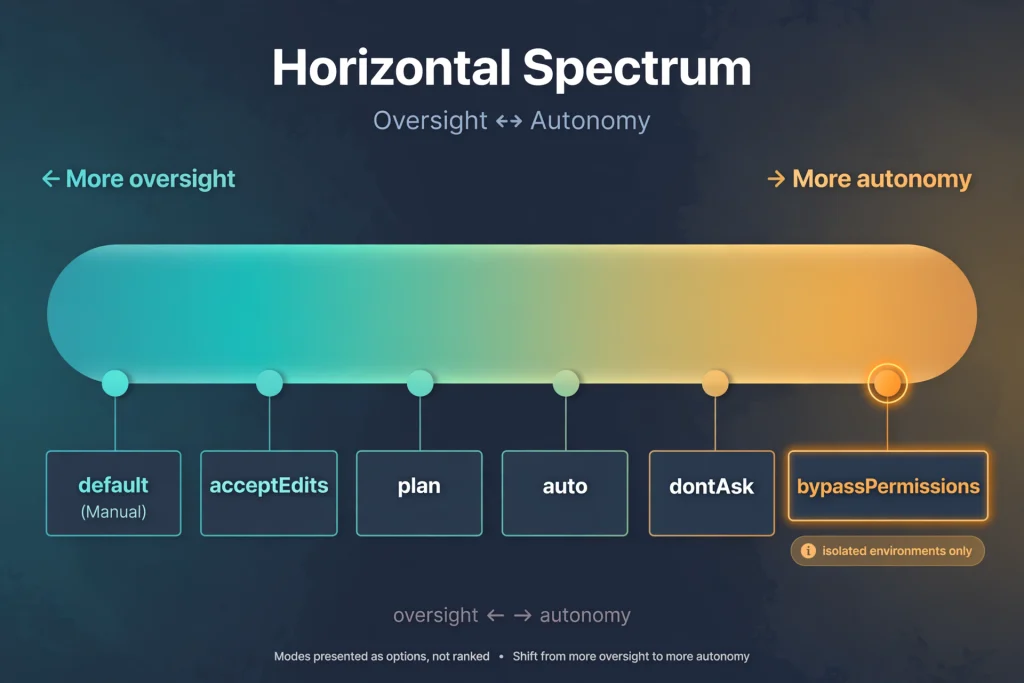
Many articles describe Claude Code as having “prompts” and “no prompts.” The current documentation describes six modes, and understanding them is the fastest way to stop reaching for the dangerous one. This is the table from the permission modes page, condensed:
| Mode | What runs without asking | Best for (per the docs) |
|---|---|---|
default (shown as Manual) | Reads only | Reviewing every action, sensitive work |
acceptEdits | Reads, file edits, common filesystem commands like mkdir, touch, mv, cp | Iterating on code you’re reviewing |
plan | Reads, plus classifier-approved commands when auto mode is available | Exploring a codebase before changing it |
auto | Everything, with background safety checks | Long tasks, reducing prompt fatigue |
dontAsk | Pre-approved tools and reads in working directories; anything else is denied | Locked-down CI and scripts |
bypassPermissions | Everything | Isolated containers and VMs only |
You switch modes during a session with Shift+Tab, at startup with --permission-mode <mode>, or as a standing default with permissions.defaultMode in a settings file. The status bar shows the active mode, and when claude dangerously skip permissions is active it reads ⏵⏵ bypass permissions on.
A detail that changes the whole conversation
According to the documentation, with Claude Code v2.1.283 or later, auto mode is the built-in starting permission mode for interactive terminal and VS Code sessions. On earlier versions it applied only to Pro, Max and Team plans. Exceptions exist, including sessions where a settings file turns auto mode off, claude -p runs, and organizations with the HIPAA configuration.
The practical consequence for anyone researching claude dangerously skip permissions: if your sessions already start in auto mode, the prompt fatigue that sent you searching for claude dangerously skip permissions may already be solved in a safer way. Check the status bar before changing anything. If the version question is open, keep your install current; our walkthrough on how to update Claude Code shows the methods.
What Happens When Permission Checks Are Skipped?
With claude dangerously skip permissions active, Claude can act on its own plan end to end. File edits, shell commands and tool calls execute immediately. Writes to protected paths, which are normally never auto-approved, are also allowed in this mode. Those protected paths include .git, .claude, .vscode, .idea and .devcontainer, plus files such as .bashrc, .zshrc, .gitconfig and .mcp.json. These are exactly the places where a small unnoticed change can persist and cause trouble later.
One quirk deserves its own mention. In interactive terminal sessions where bypass permissions are available, Claude Code does not enforce plan mode’s blocks. Claude is still instructed to plan without editing, but a file edit or shell command it attempts during planning runs without prompting. If you added --allow-dangerously-skip-permissions only to keep the option nearby, plan mode is therefore a softer guardrail than it looks.
The first time you start an interactive session in this mode, Claude Code shows a warning dialog asking you to accept responsibility. If you accept, it records skipDangerousModePermissionPrompt: true in ~/.claude/settings.json so later sessions skip the dialog. If you decline, Claude Code exits. In non-interactive mode no dialog is shown.
Normal mode versus claude dangerously skip permissions
The table below compares Manual mode with bypassPermissions. Each cell comes from the documentation unless it is marked as my inference.
| Area | Normal (Manual) mode | bypassPermissions |
|---|---|---|
| Approval prompts | Prompts for tools such as shell commands and file edits | Skipped, except the actions no mode auto-approves |
| Allow rules | Apply | Have no effect, because everything is already approved |
| Deny rules | Block | Still block |
| Ask rules | Prompt | Still prompt |
| Writes to protected paths | Prompted | Allowed |
Recognized rm on critical paths | Asks you | Asks you in the terminal, with a two-minute countdown; denied in several other surfaces |
| Prompt injection | An approval step sits between the instruction and the action | The docs state it offers no protection against prompt injection or unintended actions |
| Documented guidance | Manual is listed for sensitive work and unfamiliar code | Isolated containers and VMs only |
| Security exposure (inference) | Lower | Higher, because fewer human checkpoints stand between a bad action and your files |
What Claude Dangerously Skip Permissions Still Doesn’t Skip
This is the part older tutorials usually miss. The flag is often described as disabling every permission check. The documentation is more precise, and the precision matters for anyone designing a safer setup.
Even with claude dangerously skip permissions switched on, these remain in force:
- Deny rules. They block in every mode, including
bypassPermissions. - Ask rules. Tools matched by an explicit ask rule still prompt.
- Tools that need a human. The built-in
AskUserQuestiontool, and MCP tools markedrequiresUserInteraction, still require interaction. - Connector tools your organization set to
ask, in sessions where that setting reaches Claude Code. - Recognized critical-path removals.
rmandrmdircommands aimed at the filesystem root, your home directory or your working directory still get a prompt or a denial, though the documentation warns that the check can miss some commands and is not a replacement for operating-system controls. - Cross-session messaging safeguards.
- The root and sudo check. On Linux and macOS, Claude Code refuses to start this mode as root or under
sudoand prints:--dangerously-skip-permissions cannot be used with root/sudo privileges for security reasons. The check is skipped automatically inside a recognized sandbox.
It also does not remove limits that live outside Claude Code. Your operating system, container, network rules and cloud account permissions still decide what a process can reach. That is precisely why the documentation insists on isolation: claude dangerously skip permissions removes the in-app checkpoint, so something else has to limit the blast radius.
So the accurate summary is “no routine approval prompts,” not “no security anywhere.” Treat the distinction as a reason to build the outer boundary yourself.
Why Is It Called “Dangerously”?
The name works like a hazard label. The word “dangerously” forces anyone typing claude dangerously skip permissions to confront the trade: you swap oversight for speed. Three facts justify the label.
- AI-generated actions can be wrong. A plausible command can delete the wrong directory, overwrite a config file or install an unwanted package. In Manual mode you get a chance to read it first.
- The documentation says so directly. Its warning states that
bypassPermissionsoffers no protection against prompt injection or unintended actions. - The mode covers sensitive paths. Because protected-path writes are allowed, it can touch repository internals and Claude Code’s own configuration.
Security Risks You Should Understand
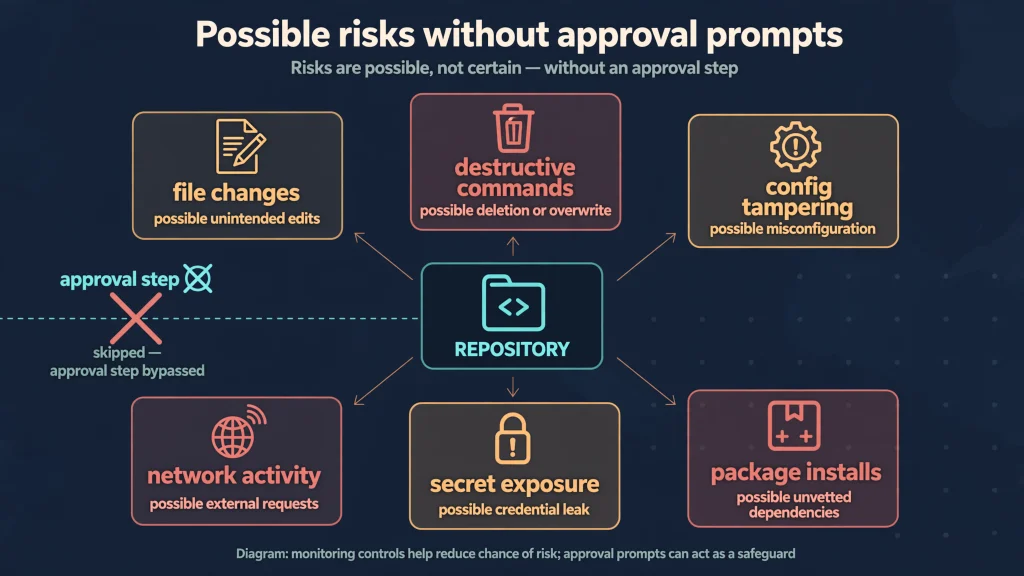
The documentation does not list a catalog of incidents, so this section is explicit about what is documented and what is reasoning from how the mode works.
Documented: the mode skips prompts, allows protected-path writes, gives no protection against prompt injection or unintended actions, and is meant for isolated environments.
Reasonable consequences (my inference):
- Unintended file changes. An edit aimed at one module can spill into others. Without a prompt, you find out afterward.
- Destructive commands. A cleanup command with the wrong target can remove work. Version control and backups are your recovery path.
- Configuration tampering. Writes to
.claude,.mcp.jsonor shell startup files can alter how future sessions behave. - Package installs and supply-chain exposure. Installing a dependency pulls third-party code onto your machine. Reviewing the install command is a real checkpoint that this mode removes.
- Secret exposure. If credentials sit in environment variables or files within reach, a command or tool call can read them and a network request can send them somewhere. Isolation and scoped credentials are the defense.
- Unintended network activity. Fetching content and calling external services normally prompts in Manual mode.
- Excessive filesystem reach. If Claude Code runs on a laptop that holds personal files, everything the account can reach is in scope unless a container or sandbox narrows it.
None of these are certain to happen. They are the realistic failure modes when a fast-moving agent has no approval step. Honest framing helps: most sessions will go fine, and the point of isolation is that the rare bad session stays small.
Prompt injection and untrusted repositories
Prompt injection is a technique where an attacker tries to override or manipulate an AI assistant’s instructions by inserting malicious text. In a coding setting, that text can hide in places an agent reads as part of its job: a README, a code comment, a documentation file, an issue description, a web page, a tool result or a script.
Here is why claude dangerously skip permissions raises the stakes. In Manual mode, an injected instruction still has to produce an action that you approve. In bypass mode, nothing sits in that gap. The documentation lists protections such as isolated context windows for web fetch and a separate server-side probe that scans tool results in auto mode, but it states that bypass mode offers no protection against prompt injection. Even the broader security guidance adds that no system is completely immune to every attack.
Practical habits for untrusted material:
- Inspect an unfamiliar repository before pointing an agent at it.
- Do not use claude dangerously skip permissions on a project you did not write or review.
- Avoid piping untrusted content straight into Claude.
- Keep secrets out of the working tree and out of the environment of the session.
- Use a disposable workspace, such as a throwaway container or VM, for anything of uncertain origin.
- Report suspicious behavior with
/feedback.
When It May Be Appropriate
Convenience alone is not a sufficient reason. The documented use is narrow: unattended work inside an isolated environment. The “common setups” table in the documentation pairs it with the goal “run fully unattended inside a container” and marks isolation as required, meaning a container, a VM or the sandbox runtime, run as a non-root user on Linux and macOS.
Situations where the trade can make sense:
- A disposable container or VM with a copy of the project, no production credentials and limited network access.
- A dev container configured to run Claude Code as a non-root user, which the documentation points to for autonomous runs.
- A throwaway experiment in a repository you wrote, with everything committed so you can restore it.
- A tightly scoped unattended task where you can state the job narrowly and verify results afterward through version control.
Even there, ask whether auto mode, acceptEdits or a few allow rules would give you the same result. For many tasks they do.
When You Should Not Use It
Skip claude dangerously skip permissions when any of these apply:
- You are in an unfamiliar or untrusted repository.
- The machine holds sensitive personal data, or production credentials are reachable.
- You are touching production systems.
- Valuable or irreplaceable files sit within the account’s reach and are not backed up.
- You are about to run scripts you have not reviewed.
- You are unsure what Claude Code will execute.
- You are experimenting without version control.
The documentation’s own guidance for sensitive work and unfamiliar code is Manual mode. If you are on a shared computer or a work laptop managed by an employer, check policy first, because administrators can disable the mode.
Safer Alternatives to Claude Dangerously Skip Permissions
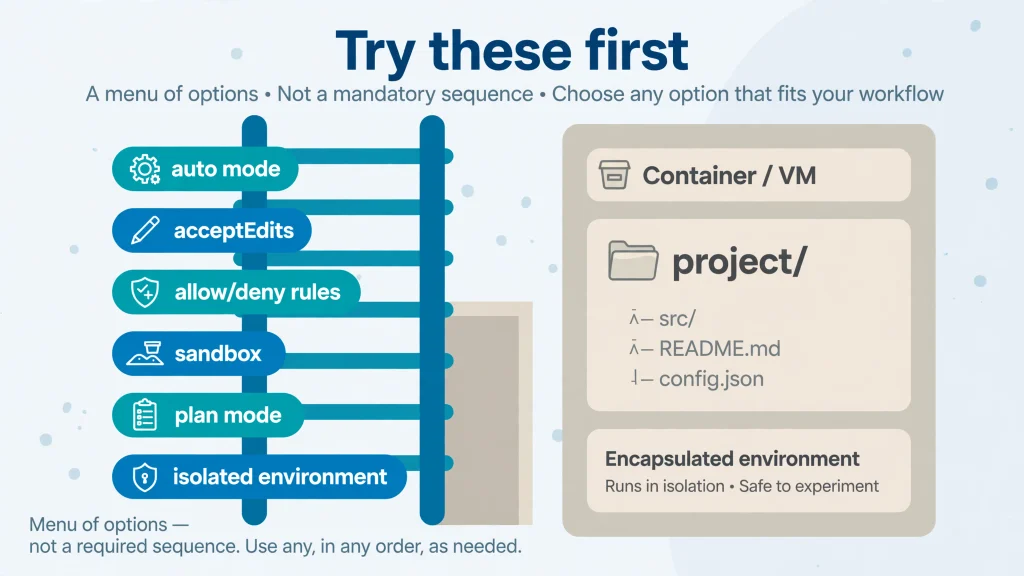
The safer alternatives to claude dangerously skip permissions work as a ladder. Start at the lowest rung that removes the friction you actually feel.
1. Check whether auto mode is already your answer
Auto mode lets Claude execute without routine prompts while a separate classifier model reviews actions before they run. The documentation says the classifier blocks actions that escalate beyond your request, target unrecognized infrastructure, or appear driven by hostile content Claude read. Its default block list includes downloading and executing code such as curl | bash, force pushes, production deploys, mass cloud-storage deletion and printing live credentials. Notably, the list also includes launching an autonomous agent loop without human approval or a sandbox, such as one started with the skip-permissions flag.
Auto mode comes with a caveat the documentation repeats: it reduces prompts but does not guarantee safety, and it is not a substitute for review on sensitive operations. It also has requirements, including a supported model, and administrators can disable it. Start it with:
bash
claude --permission-mode auto2. Use acceptEdits mode
If your main annoyance is approving file edits, this mode handles it. It auto-approves edits and common filesystem commands inside the working directory while other Bash commands still prompt:
bash
claude --permission-mode acceptEditsYou can make a mode your default in ~/.claude/settings.json:
json
{
  "permissions": {
    "defaultMode": "acceptEdits"
  }
}
3. Write allow and deny rules for the commands you trust
This is the direct answer to repeated prompts. The documentation’s own example allows npm scripts and git commits while refusing pushes:
json
{
  "permissions": {
    "allow": [
      "Bash(npm run *)",
      "Bash(git commit *)"
    ],
    "deny": [
      "Bash(git push *)"
    ]
  }
}
Put the * after the subcommand, because Bash(git *) would allow every git command. Be aware that Bash patterns are not a hard security boundary: the documentation shows that a deny rule on git push * does not stop a differently written push, and that a deny on curl does not stop the same program invoked by full path or inside sh -c. For hard enforcement, pair rules with sandboxing.
You can also deny sensitive files outright, for example Read(./.env), and the documentation notes that deny rules are respected in every mode.
4. Turn on the Bash sandbox
The sandbox gives the operating system a role: it limits which paths and network hosts shell commands can reach. The documentation describes a combination for iterating locally with fewer prompts: stay in Manual mode, run /sandbox, and select auto-allow. You can also set sandbox.enabled to true in a settings file. It is documented for macOS, Linux and WSL2. Because sandbox limits apply even if a prompt injection manages to steer Claude’s decisions, permissions and sandboxing work best together.
5. Add a deliberate checkpoint with plan mode
claude --permission-mode plan has Claude research and propose changes without editing. You approve the plan before it starts. This is a good habit for large refactors.
6. Isolate the whole environment
Dev containers, VMs and disposable workspaces change the outcome of a mistake. The security guidance recommends VMs for running scripts and tool calls, especially with external web services, and dev containers for extra isolation on sensitive code.
Using Claude Code in Trusted Environments
If, after the ladder above, you still decide claude dangerously skip permissions fits a job, build the environment first:
- Use a copy. Work from a fresh clone or a container volume, not your main checkout, and commit before you start so you can inspect or discard everything.
- Limit credentials. Give the session a scoped token for the one thing it needs, never a personal admin key or a production secret.
- Limit the network. The documentation’s warning specifically describes containers and VMs without internet access.
- Run as non-root. Claude Code refuses root and sudo on Linux and macOS unless it detects a recognized sandbox.
- Review the result. Read the diff and command history before merging anything.
Experiments with parallel sessions raise the same questions at larger scale. If you are exploring that, our explainer on Claude Code agent teams is a useful companion.
Using It in Automation or CI
Automation is the one place the documentation names the flag explicitly. For a run that must go unattended inside a container, the documented pairing is:
bash
claude -p "<prompt>" --dangerously-skip-permissionswith required isolation: a container, a VM or the sandbox runtime, running as a non-root user on Linux and macOS. In this -p run, the few calls that would still prompt are denied rather than asked.
For CI that doesn’t need the full bypass, the documentation shows a tighter pattern built on dontAsk mode and an exact allowlist:
bash
claude -p "run the test suite" --permission-mode dontAsk --allowedTools "Bash(npm test)" "Read"Here anything not pre-approved is denied, and the session never waits for input. For a job like running tests and reporting results, that is usually the better pattern, because the allowlist documents exactly what the job may do.
Other facts worth knowing for automated runs:
claude -pand Agent SDK runs start in Manual mode on v2.1.302 or later when no mode is set, and calls needing approval are denied unless an allow rule, hook or callback approves them.- Trust verification is disabled for
-pruns, so a repository’s contents deserve extra scrutiny before an unattended run. - Cloud sessions ignore
bypassPermissionsanddontAskfrom settings files.
Two caveats are worth stating plainly. First, “no interactive approval prompt” is not “no security restrictions at all,” because deny rules, ask rules, the critical-path checks and everything outside Claude Code still apply. Second, I could not verify an official GitHub Actions template for this flag, so I do not publish one here. Several third-party posts show workflow snippets; treat them as unverified and check Anthropic’s own GitHub integration documentation first.
How to Troubleshoot Permission Prompts Safely
Before you reach for claude dangerously skip permissions, work through the following. The first step is always to understand the permission system, not to remove it.
If Claude Code keeps asking for the same thing. Choose “Yes, and don’t ask again” on a Bash prompt. The documentation says that approval is saved per repository and command in .claude/settings.local.json. File-modification approvals last only until the session ends, so for edits use acceptEdits. Or add an allow rule through /permissions.
If a command is blocked or a tool is denied. Run /permissions to see every rule and which settings file it came from. Remember that deny beats ask beats allow, and that a deny at any scope blocks an allow elsewhere. In auto mode, blocked actions appear under the Recently denied tab, where pressing r retries with manual approval.
If auto mode pauses. The classifier blocking an action 3 times in a row, or 20 times total, causes a fallback to prompting. Repeated blocks usually mean missing context about your infrastructure, and an administrator can configure trusted infrastructure.
If a rule seems misconfigured. Look for a wildcard placed before the subcommand, a Write(path) rule (only Edit(path) and Read(path) rules match file paths), or a path anchoring mistake: /path is relative to the settings source, and an absolute path starts with //. claude doctor can also surface invalid settings.
If a trusted directory isn’t recognized. Confirm you accepted the workspace trust dialog, since project allow rules only apply after that. To give Claude access to another folder, use --add-dir at startup or /add-dir during a session.
If a setting doesn’t take effect. Settings precedence applies, with managed settings highest. Also note that defaultMode: "auto" or "bypassPermissions" set in .claude/settings.json or .claude/settings.local.json does not take effect, so move auto to ~/.claude/settings.json.
If a session starts in Manual mode when you asked for bypass. Check the VS Code or Desktop toggle, a --restricted flag (which refuses bypass), or an administrator’s policy.
Security Best Practices
- Use least privilege. Start in the most restrictive mode that lets you work, and widen only when a specific task needs it.
- Keep secrets out of reach. Add deny rules such as
Read(./.env), keep credentials out of project directories, and remember that anything in the process environment may be readable by commands the session runs. - Rotate exposed credentials. If a key might have leaked, replace it rather than guessing.
- Use version control and backups. Commit before long runs.
- Keep Claude Code current. The documentation ties several permission features to specific versions.
- Review generated commands. The documentation says you are responsible for reviewing proposed code and commands before approval.
- Audit your settings. Run
/permissionsregularly, and avoid production credentials during experiments.
If you are weighing which plan to run Claude Code on, our overview of Claude Code free explains what is available without paying, and our comparison of Claude plans shows what each paid tier includes, which also matters because the Desktop app’s bypass toggle depends on whether you’re on Pro, Max, Team or Enterprise.
Common Mistakes
- Treating the flag as a permission-error fix. If a deny rule blocks an action, claude dangerously skip permissions does not remove that rule.
- Running it on the host machine. The documented guidance is isolated environments.
- Using it in someone else’s repository. Untrusted content plus no prompts is the worst combination.
- Assuming allow rules help. In bypass mode they have no effect, so a carefully built allowlist does nothing there.
- Putting it in project settings. A project’s
.claude/settings.jsoncannot start a session in this mode, and a shared default would be risky for teammates anyway. - Skipping version control.
For Teams: Blocking the Mode
Administrators who do not want claude dangerously skip permissions available to their developers can set permissions.disableBypassPermissionsMode to "disable". The documentation recommends placing it in managed settings so users cannot override it, though it works from any scope, which means an individual can set it in their own settings to lock themselves out of the mode:
json
{
  "permissions": {
    "disableBypassPermissionsMode": "disable"
  }
}
A parallel setting, permissions.disableAutoMode, removes auto mode.
Frequently Asked Questions
What does --dangerously-skip-permissions do in Claude Code?
It starts Claude Code in bypassPermissions mode, so tool calls such as file edits and shell commands run without approval prompts. The documentation says the flag is equivalent to --permission-mode bypassPermissions.
Why is Claude Code’s skip-permissions option called dangerous?
Because it removes the human approval step, and the documentation states it offers no protection against prompt injection or unintended actions. The name reminds you that you accept responsibility for whatever runs.
Is claude dangerously skip permissions safe?
Not by itself. It is meant for isolated environments like containers and VMs where Claude Code cannot damage your host. Safety comes from the environment around it, not from the flag.
When should I use Claude Code without permission prompts?
For claude dangerously skip permissions the documentation’s answer is narrow: prefer other options first, such as auto mode, acceptEdits, allow rules or the sandbox. Use full bypass only for unattended work in an isolated container, VM or the sandbox runtime.
Can I use claude dangerously skip permissions in a trusted repository?
A trusted repository lowers one risk, prompt injection from untrusted files, but not the risk of mistakes or the effect of exposed credentials. On your own machine, the safer pattern is to enable the mode only when needed with --allow-dangerously-skip-permissions and consider whether auto mode does the job.
Is there a safer alternative?
Yes. Auto mode adds a classifier review, acceptEdits covers file edits, allow rules cover specific commands, dontAsk suits locked-down CI, and the Bash sandbox adds operating-system enforcement.
Does the option disable all Claude Code security protections?
No. Deny rules, ask rules, interaction-required tools, critical-path removal checks, cross-session messaging safeguards and the root and sudo check still apply, and limits outside Claude Code still exist. It does turn off the routine approval prompts and the protected-path write protection.
Can claude dangerously skip permissions be used in CI/CD?
For claude dangerously skip permissions in automation, the documentation shows claude -p "<prompt>" --dangerously-skip-permissions for unattended runs inside a container, VM or sandbox runtime. For CI with a known job, dontAsk with an exact allowlist is an alternative shown in the same documentation.
How do I fix Claude Code permission problems without disabling permissions?
Open /permissions, check which rule or mode is responsible, add a narrow allow rule, switch to acceptEdits or auto mode, and confirm trust and directory access. The troubleshooting section above walks through each case.
Should I use claude dangerously skip permissions on an unfamiliar GitHub repository?
No. An unfamiliar repository can contain content crafted to manipulate an agent, and without prompts nothing stands between that content and your system. Use Manual mode, inspect the code first, and use a disposable container or VM if you need to run it.
Conclusion
Claude dangerously skip permissions is a real, documented, current Claude Code option, and the exact spelling is --dangerously-skip-permissions. It removes routine approval prompts, lets writes reach protected paths, and leaves you with no prompt-injection protection from Claude Code’s permission layer. The documentation limits its intended use to isolated environments.
For most developers the better answer to prompt fatigue sits lower on the ladder: check whether auto mode is already active, use acceptEdits, write precise allow and deny rules, and turn on the sandbox. Reserve full bypass for disposable, well-contained, unattended jobs where you have thought about what could go wrong. Never run claude dangerously skip permissions against code you do not know and trust, and keep the permission documentation open, because modes and requirements change between versions.
Sources and References
- Anthropic, Claude Code documentation: Choose a permission mode. https://code.claude.com/docs/en/permission-modes
- Anthropic, Claude Code documentation: Configure permissions. https://code.claude.com/docs/en/permissions.md
- Anthropic, Claude Code documentation: Security. https://code.claude.com/docs/en/security.md
 Daniel Carter