

In this article
Verified against Anthropic’s official documentation on November 6, 2026. Claude Code ships new builds very often, so re-check the linked docs if a command behaves differently on your machine.
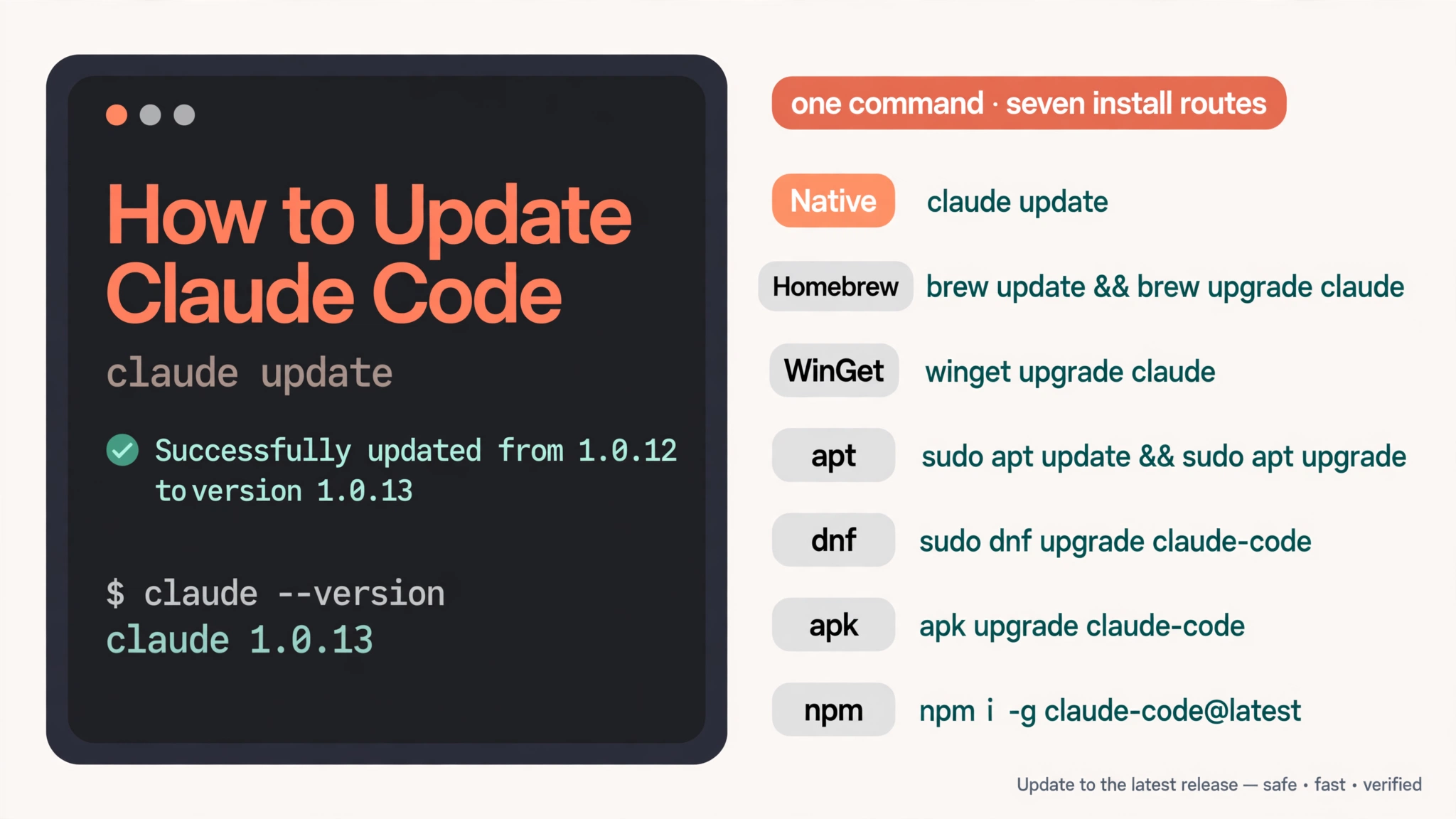
If you want the quickest answer to how to update claude code, open a terminal and run claude update. That is Anthropic’s documented manual update command, and it is the right one for the recommended native installation. If you installed through Homebrew, WinGet, npm, apt, dnf, or apk, a package manager owns the binary, so you upgrade with that tool instead. This guide explains how to update claude code for each of those seven install methods, how to prove the update worked, and what to do when it stalls.
Table of Contents
How to Update Claude Code
The shortest correct answer hinges on one question: how did Claude Code get onto your computer? Anthropic’s current setup documentation names the native installer as the recommended route and says native installations update themselves in the background. Claude Code looks for a newer build at startup and periodically while a session runs, and the new version takes effect the next time you launch it.
If you would rather not wait for that background check, run this in your shell:
bash
claude updateWhen an update installs, the command reports Successfully updated from <old version> to version <new version>. When you already have the newest build available to your channel, it reports Claude Code is up to date (<version>). Installs managed by Homebrew, WinGet, or apk report Claude is up to date! instead, which is a quiet clue that a package manager is involved.
So the one-sentence version of how to update claude code is this: use claude update for a native install, and use your package manager’s upgrade command for everything else. Older tutorials sometimes assume an npm-only world. npm still works, but the official docs now treat the native installer as the default, and they describe the old local npm install under ~/.claude/local/ as a legacy leftover.
How to Check Your Claude Code Version
Anyone working out how to update claude code should first write down what they already have. The documented check is:
bash
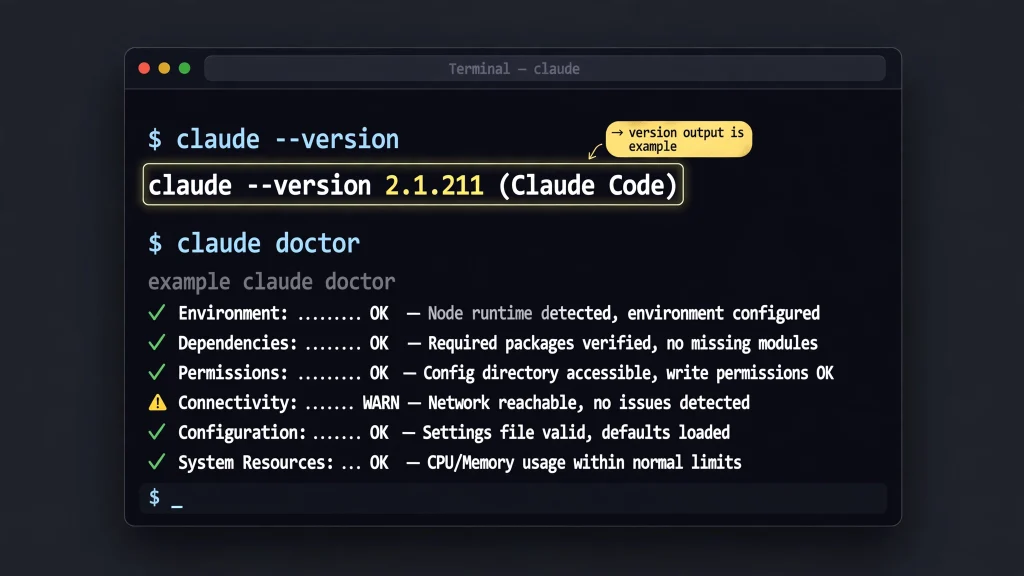
claude --versionA working installation prints a version number; Anthropic’s own example output looks like 2.1.211 (Claude Code). For a fuller health report, run:
bash
claude doctorPer the docs, claude doctor prints read-only diagnostics without starting a session. It covers install health, settings-file validation errors, and warnings with suggested fixes. It also shows the outcome of the last update attempt Claude Code recorded, and on native and npm installs it shows whether auto-updates are enabled.
To see what changed in recent builds, the official place is the Claude Code releases page on GitHub. On November 6, 2026, that list was sitting in the 2.1.31x range, with new tagged builds appearing on most weekdays through late October. I am deliberately not naming a single “latest” number here, because it will be stale within days. Also remember that your own channel setting decides what claude update can reach, which the channel section below explains.
How to Update Claude Code Step by Step
These six steps cover how to update claude code on every installation method; only step four changes.
- Finish or save your work. Updates take effect on the next launch, and on Windows the operating system can lock a running executable, so close open sessions first.
- Record the current version with
claude --version. - Identify the installation method. Run
which -a claudeon macOS, Linux, or WSL, orwhere.exe claudein Windows PowerShell, to see every copy on your PATH. Then check the usual suspects. A native install shows a symlink into~/.local/share/claude/versions/when you runls -la ~/.local/bin/claude. An npm install appears in the output ofnpm -g ls @anthropic-ai/claude-code. A Homebrew install appears inbrew list --cask | grep claude-code. - Run the matching update command from the comparison table later in this guide.
- Restart Claude Code. Exit the session and run
claudeagain. - Verify with
claude --versionandclaude doctor.
On Windows PowerShell, this pair tells you whether the native installer’s file exists and where claude resolves:
powershell
Test-Path "$env:USERPROFILE\.local\bin\claude.exe"
where.exe claude
If where.exe finds more than one claude, you have conflicting installations, and you should resolve that before updating anything. The troubleshooting section covers it.
How to Update Claude Code on the Stable or Latest Channel
Many people searching for how to update claude code are really asking why they are not on the newest build. The answer is often the release channel. Anthropic’s documentation describes two channels for auto-updates and for claude update:
"latest", the default, delivers new features as soon as they ship."stable"serves a version that is typically about one week old and skips releases with major regressions.
You can change the channel from inside Claude Code with /config and the Auto-update channel option, or in your settings file:
json
{
  "autoUpdatesChannel": "stable"
}
Homebrew and the Linux repositories do not use that setting. Homebrew picks a channel by cask name: claude-code tracks stable, and claude-code@latest tracks latest. The apt, dnf, and apk repositories each publish both channels at separate addresses. The docs add one caveat worth remembering: a newly launched model can require a Claude Code version newer than the stable channel serves, and in that case the fix is to move to the latest channel.
A related setting, minimumVersion, sets a floor. Background updates and claude update refuse to install anything below it, so switching from latest to stable will not quietly downgrade you.
How to Update Claude Code When Auto-Updates Are Switched Off
Some machines disable background updates on purpose. Anthropic documents two environment variables for this.
DISABLE_AUTOUPDATER set to "1" in the env block of your settings file stops the background check, but claude update and claude install still work. Running claude doctor shows an Auto-updates line that reads disabled (set by env: DISABLE_AUTOUPDATER) when it is active.
DISABLE_UPDATES blocks every update path, manual ones included, and is meant for teams that distribute Claude Code through their own tooling. If claude update refuses to run and you did not set it yourself, ask whoever manages your machine, since that variable is meant for setups where Claude Code is distributed through other channels.
How to Update Claude Code Installed with npm
npm remains a supported way to install Claude Code, so how to update claude code through npm is still a fair question. It requires Node.js 22 or later. On an older Node.js version, npm prints an EBADENGINE warning instead of failing, because the package downloads a native binary that does not use your Node.js at runtime. The documented upgrade command is:
bash
npm install -g @anthropic-ai/claude-code@latestTwo details matter here. First, avoid npm update -g. The official docs warn that it respects the version range from your original install and may not move you to the newest release. Second, never put sudo in front of the install. Anthropic warns that it can cause permission problems and security risks.
If your npm global directory is not writable, Claude Code shows a one-time notice at startup and claude doctor lists the available fixes. When npm permission errors keep recurring, the docs suggest switching to the native installer:
bash
curl -fsSL https://claude.ai/install.sh | bashAfter you switch, remove the npm copy so two installations do not fight over the claude name:
bash
npm uninstall -g @anthropic-ai/claude-codeWindows users sometimes meet a different obstacle: PowerShell’s execution policy blocks the npm.ps1 launcher. Anthropic’s documented fix is to allow locally created scripts for your user, or to call npm.cmd instead:
powershell
Set-ExecutionPolicy -ExecutionPolicy RemoteSigned -Scope CurrentUserHow to Update Claude Code on macOS
Claude Code supports macOS 13.0 and later. On a Mac, how to update claude code depends on which of two installs you have.
For the native installer, run claude update from Terminal. The launcher lives at ~/.local/bin/claude, and that file is a symlink into ~/.local/share/claude/versions/.
For Homebrew, upgrade the cask you installed:
bash
brew upgrade claude-code
brew upgrade claude-code@latest
Run only the line that matches your cask. If you run the @latest command when only the stable cask is installed, Homebrew answers that the cask claude-code@latest is not installed. To see which one you have, use brew list --cask | grep claude-code. If Homebrew seems to offer an older release than you expect, the usual cause is a stale local index, and brew update refreshes it. Homebrew also keeps old versions on disk after an upgrade, so brew cleanup reclaims that space from time to time.
One more Mac-specific point: the Claude Desktop app is a separate install. Its own release notes list a “bundled Claude Code version” for each release, so updating the terminal tool and updating Desktop are two different actions.
How to Update Claude Code on Windows
Claude Code runs natively on Windows 10 version 1809 or later and on Windows Server 2019 or later. You do not need Administrator rights to install it, and Git for Windows is optional: without it, Claude Code uses PowerShell as its shell tool.
The Windows answer to how to update claude code is the same command as elsewhere for a native install: run claude update from PowerShell or CMD. Whichever you use makes no difference to the update itself; it only changes which installer command you would copy for a fresh install. For WinGet installs, use:
powershell
winget upgrade Anthropic.ClaudeCodeWinGet installations do not auto-update by default, and Anthropic notes that the upgrade can fail while Claude Code is running because Windows locks the executable. Close every session and try again. If you want Claude Code to run the Homebrew or WinGet upgrade for you, set CLAUDE_CODE_PACKAGE_MANAGER_AUTO_UPDATE to 1; it then upgrades only the Claude Code package and shows a restart prompt on success.
Windows has one failure that deserves advance warning. During a native update, Claude Code renames the existing claude.exe to a backup and moves the new version into place. If that second step fails and the rename-back also fails, claude suddenly becomes “not recognized.” The documented repair restores the newest backup:
powershell
Get-ChildItem "$env:USERPROFILE\.local\bin\claude.exe.old.*" | Sort-Object Name | Select-Object -Last 1 | Rename-Item -NewName claude.exeIf you run Claude Code inside WSL, treat it as Linux: open the WSL terminal and update from there, not from PowerShell. Anthropic notes that WSL 2 supports sandboxing while native Windows does not, which is one reason some people prefer it.
How to Update Claude Code on Linux
Linux has the widest spread of methods, so how to update claude code here starts with identifying yours. Supported platforms include Ubuntu 20.04 and later, Debian 10 and later, and Alpine Linux 3.19 and later. A native install updates with claude update, exactly like macOS. Package-manager installs use the system’s normal upgrade route, because Claude Code does not auto-update them. For apt, dnf, and apk the commands are:
bash
sudo apt update && sudo apt upgrade claude-codebash
sudo dnf upgrade claude-codebash
apk update && apk upgrade claude-codeAnthropic signs all three repositories with its release signing key, and each repository offers stable and latest channels at separate addresses. A package installed from the stable repository stays on stable until you reconfigure the repository; the setup page walks through switching. Because these commands need elevated privileges, Claude Code leaves them to you rather than running them in the background.
Alpine and other musl-based systems need extra packages at runtime, namely libgcc, libstdc++, and ripgrep, plus USE_BUILTIN_RIPGREP set to 0 in your settings. If an installer or update is killed with exit code 137 on a small server, the docs say the install step needs roughly 512 MB of free memory and recommend freeing memory or adding swap.
If your home directory sits on shared network storage, read Anthropic’s “Install on network storage” guidance before updating. An in-place npm upgrade deletes the previous binary, which can crash sessions that are still running it on other machines.
How to Update Claude Code When Installed Through Different Methods
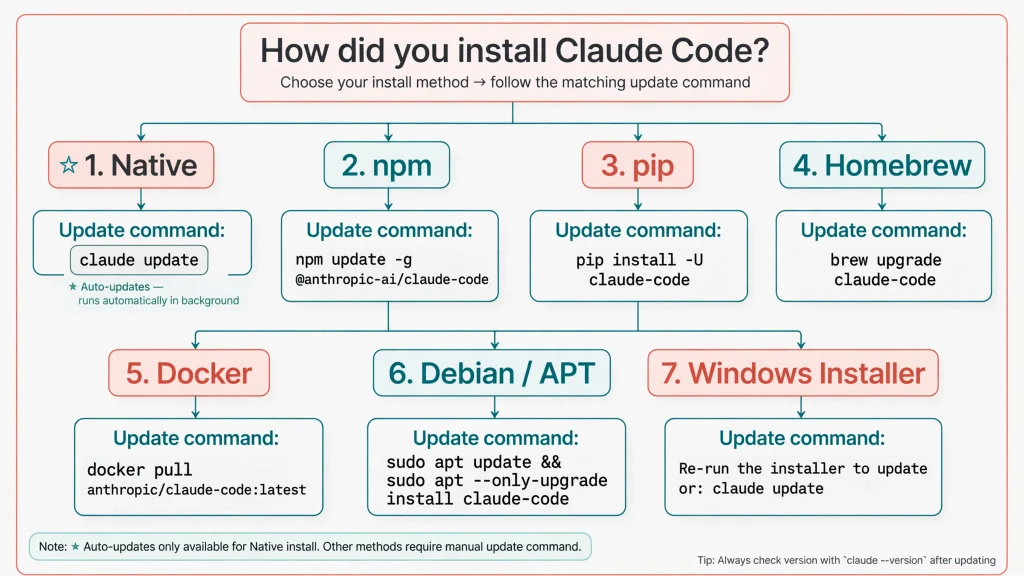
Knowing how to update claude code for your specific install saves a lot of confusion, and this table pulls the verified commands together. Use claude --version after any of them to confirm the result.
| Installation method | How to update | Auto-updates? | Important notes |
|---|---|---|---|
| Native installer (recommended) | claude update | Yes, in the background | Launcher is ~/.local/bin/claude on macOS and Linux; claude.exe under .local\bin on Windows |
| Homebrew | brew upgrade claude-code or brew upgrade claude-code@latest | No by default | Cask name sets the channel; brew update fixes a stale index |
| WinGet | winget upgrade Anthropic.ClaudeCode | No by default | Upgrade can fail while Claude Code is running |
| apt (Debian, Ubuntu) | sudo apt update && sudo apt upgrade claude-code | No | Channel is chosen by repository |
| dnf (Fedora, RHEL) | sudo dnf upgrade claude-code | No | Channel is chosen by repository |
| apk (Alpine) | apk update && apk upgrade claude-code | No | Needs libgcc, libstdc++, ripgrep |
| npm | npm install -g @anthropic-ai/claude-code@latest | Only if the npm directory is writable | Needs Node.js 22+; avoid npm update -g and sudo |
Notice that two rows in the table mention auto-updates with conditions. Anthropic says native installations update automatically and that an npm install can auto-update only when the npm global directory is writable. Every other method waits for you.
How to Verify That Claude Code Updated Successfully
A finished command is not the same as a working update, so confirm three things.
First, check the version. Close the terminal window, open a fresh one, and run claude --version. The number should be higher than the one you recorded earlier, or equal to the build you expected from your channel. Anthropic’s own advice after installing is to open a new terminal window, because a session started before the change keeps its old PATH.
Second, run claude doctor. Look for a clean install-health section, no settings-file validation errors, and, on native installs, a successful last update attempt. This step is also how you catch a wrong-copy problem: if claude doctor reports a launcher the native installer did not create, you are running a custom setup.
Third, start Claude Code in a small project and confirm that it opens, that you are still signed in, and that your usual configuration still behaves. If something is off, the commands in the troubleshooting section narrow it down quickly.
What Happens to Your Claude Code Settings After an Update?
An update replaces the program, not your personal setup. Claude Code keeps its configuration in separate places: ~/.claude/ holds your settings.json, instructions, skills, and plugins, ~/.claude.json holds account details and app state, and each project can carry its own .claude/ folder and .mcp.json. On Windows, ~/.claude resolves to %USERPROFILE%\.claude. The native installer puts new versions under ~/.local/share/claude/versions/, a different directory entirely.
Anyone learning how to update claude code reasonably worries about losing their setup, so I should be precise about what the documentation does and does not say. I did not find a sentence in Anthropic’s docs that literally promises “updates never touch your settings.”
What the docs do show is that removing configuration is its own deliberate step in the uninstall instructions, with an explicit warning that it deletes settings, allowed tools, MCP server configurations, and session history. Updating does not ask you to do any of that. The docs also say Claude Code keeps the five newest earlier copies of ~/.claude.json in a backups/ folder whenever it rewrites that file.
Here is how the main categories behave:
- Settings and environment variables. Values in
settings.json, including theenvblock, live in your configuration files, not in the binary. Variables you export in your shell profile are also untouched. - Authentication. Your login is stored outside the binary. On macOS Claude Code saves credentials to the login Keychain, falling back to a plaintext
~/.claude/.credentials.jsonif the Keychain rejects the write, and Anthropic lists.credentials.jsonamong the state files to keep. An expired login is a separate problem from updating;/loginfixes it. - Projects and history. Transcripts live under
~/.claude/projects/. The cleanup sweep removes them by age, 30 days by default, regardless of whether you update. - Skills and plugins. They sit in
~/.claude/skills/and~/.claude/plugins/. Plugins are managed byclaude plugincommands, so they update on their own schedule. If you build reusable workflows, our Claude Code Skills guide explains where those files live, and some community plugins, such as the one in our claude-mem guide, can declare a minimum Claude Code version, so an old build may hold a plugin back. - IDE integrations. The VS Code extension bundles a private copy of the command-line tool inside the extension directory and does not add it to your PATH. Updating the terminal install does not change that bundled copy.
What to Do If Claude Code Will Not Update
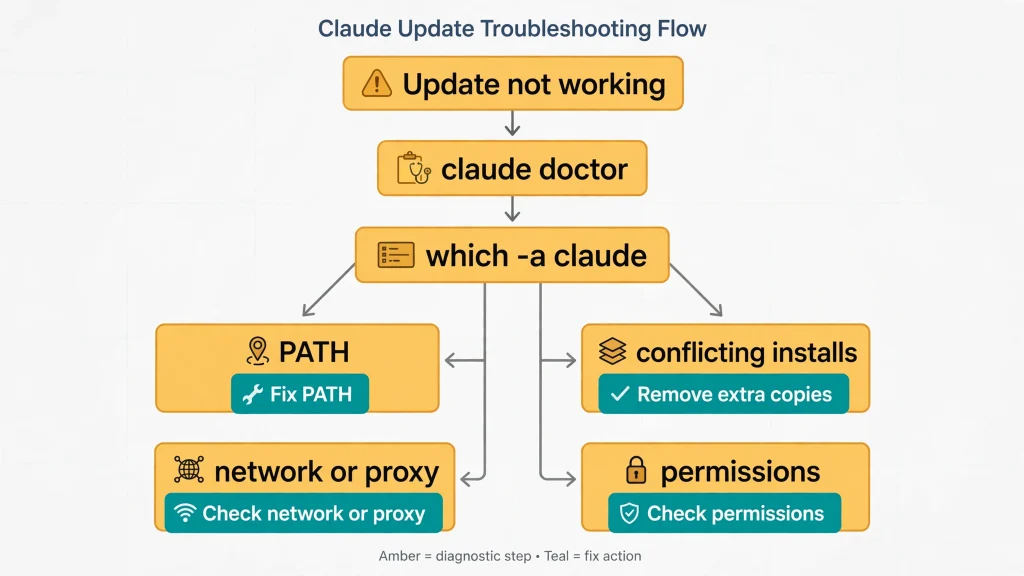
If your attempt at how to update claude code fails, start with the evidence. Run claude --version, claude doctor, and which -a claude (or where.exe claude on Windows). Most stuck updates trace back to one of the causes below, and all of them come from Anthropic’s installation troubleshooting guide.
How to Update Claude Code After an “Auto-update failed” Warning
A red Auto-update failed · Run claude doctor line means the background update did not install, and you can keep working. claude doctor only gives a status such as install_failed with a date, not a cause. To finish the update or see the real error, run claude update from your shell and match any error message against the troubleshooting guide.
How to Update Claude Code When the Command Is Not Found
If you see command not found: claude or 'claude' is not recognized, the install directory is probably missing from your PATH. The native installer places the launcher at ~/.local/bin/claude on macOS and Linux and at %USERPROFILE%\.local\bin\claude.exe on Windows. For Zsh, the documented fix is:
bash
echo 'export PATH="$HOME/.local/bin:$PATH"' >> ~/.zshrc
source ~/.zshrc
Bash users append the same line to ~/.bashrc (or ~/.bash_profile on macOS). If it still fails, the usual reasons are a terminal that predates the change or a terminal embedded in an editor, which inherits PATH from the editor.
How to Update Claude Code When Two Installations Exist
Two copies produce the classic symptom of updating successfully but still seeing an old version. List them with which -a claude, then check ~/.local/bin/claude, ~/.claude/local/, and the npm global list. Keep one, and Anthropic recommends the native install. A script or hand-made symlink at ~/.local/bin/claude counts as a custom launcher: auto-update and claude update leave it alone and install new versions under versions/, while your launcher decides which one runs. To hand control back, remove ~/.local/bin/claude and run claude update.
How to Update Claude Code Behind a Proxy or Flaky Network
Native installs download from downloads.claude.ai. This check tells you whether you can reach it:
bash
curl -sI https://downloads.claude.ai/claude-code-releases/latestA 200 status means the server is reachable; 403 often points to a proxy or filter, and 5xx usually means wait a few minutes. Behind a corporate proxy, set HTTPS_PROXY and HTTP_PROXY first.
The message The connection dropped while downloading the update means the retries, three attempts in total, did not recover; the fix is to run claude update again or set your proxy. A download that stays connected but does not finish within 10 minutes fails with Download timed out and is not retried. If you see Release verification failed for Claude Code, nothing was installed and your existing version still works, so rerun the command or try later.
Permission Problems
For native installs, claude update needs write access to ~/.local/bin, ~/.local/share/claude, ~/.local/state/claude, ~/.cache/claude, and ~/.claude.json. The docs include a writability check and a fix using sudo chown -R $(whoami) ~/.local. For npm, remember the rule about sudo and use the native installer if permissions keep fighting you.
Package Manager Lag
Anthropic lists a known issue: Claude Code may announce an update before the new version reaches Homebrew, WinGet, or the Linux repositories. If an upgrade fails, wait and try again later. For Homebrew specifically, run brew update first.
Hangs and Odd Behavior
On versions before v2.1.214, claude update could hang if one of your shell configuration paths, such as ~/.zshrc, was a directory instead of a file. The documented workaround on an affected version is to rerun the install script, which gets you past it. A separate error, Raw mode is not supported, affected pipe-based installs before v2.1.246 when organization settings required an approval dialog; rerunning the installer works.
Channel Confusion
If claude update says you are current while GitHub lists a newer tag, compare your channel setting first. A user report on Anthropic’s GitHub tracker also describes claude update checking the stable channel even with autoUpdatesChannel set to latest. I could not confirm whether that report has been resolved, so treat it as unverified, and use the releases page to see what is actually newest.
Should You Reinstall Claude Code Instead of Updating It?
Usually, no. When people compare reinstalling with how to update claude code in place, the update wins: a normal update is faster, preserves your channel and configuration, and avoids creating a second installation. Reinstall only in situations where the update path itself is broken:
claude.exeis missing on Windows and noclaude.exe.old.*backup exists.- You see
Error: claude native binary not installedand fixing optional dependencies does not help. - The installer picked the wrong binary variant, such as a musl build on a glibc system.
- You see repeated corruption or launch failures that
claude doctorcannot explain.
For a native reinstall, rerun the installer. On macOS, Linux, and WSL:
bash
curl -fsSL https://claude.ai/install.sh | bashOn Windows PowerShell:
powershell
irm https://claude.ai/install.ps1 | iexDo not delete ~/.claude or ~/.claude.json as part of a reinstall. Anthropic’s own guidance says to leave ~/.claude.json, ~/.claude/settings.json, and ~/.claude/plugins/ alone because they hold your account details, preferences, and installed plugins. If you do want a complete removal, follow the uninstall section for your method, and remember that deleting configuration also deletes session history. Anyone who needs a particular build can pin it by passing a version number to the installer, as the setup page documents.
How to Update Claude Code Safely
This checklist is the safest short summary of how to update claude code, and it suits any install method.
- Check the current version with
claude --version, and save the number. - Identify the installation method with
which -a claudeorwhere.exe claude, plus the native, npm, and Homebrew checks above. - Follow the current official update process for that method:
claude update,brew upgrade,winget upgrade, the apt, dnf, or apk upgrade, or the npm command. - Verify the new version in a fresh terminal with
claude --version. - Test Claude Code by starting a session, confirming you are signed in, and running
claude doctor. - Troubleshoot only if necessary, starting with PATH, conflicting copies, and network reachability.
If you are weighing which account type you need before you update or reinstall, see our Claude Code pricing guide. Anthropic’s setup page says Claude Code requires a Pro, Max, Team, Enterprise, or Console account.
Claude Code Update Problems: Quick Troubleshooting Table
| Problem | Likely cause | Recommended action |
|---|---|---|
Auto-update failed · Run claude doctor | Background update did not install | Run claude update in your shell and read the error it prints |
command not found: claude after an update | Install directory not on PATH, or stale terminal | Add ~/.local/bin to PATH and open a new terminal |
| Update succeeds but the old version still runs | Conflicting installations or custom launcher | Run which -a claude, keep one install, remove extras |
claude update reports up to date but a newer tag exists | Stable channel, or minimumVersion pin | Check autoUpdatesChannel and the releases page |
The connection dropped while downloading the update | Proxy or unstable network | Rerun claude update; set HTTPS_PROXY if required |
Release verification failed | Release could not be confirmed | Rerun the command, or try again later |
Cask 'claude-code@latest' is not installed | Wrong Homebrew cask name | Run brew list --cask | grep claude-code, upgrade that cask |
| WinGet upgrade fails | Executable locked while running | Close all sessions and retry |
'claude' is not recognized right after a Windows update | claude.exe missing mid-swap | Restore claude.exe.old.* backup, or reinstall |
ENOTEMPTY during npm upgrade | Leftover package directory | Delete the directory npm names, then reinstall |
Error: claude native binary not installed | npm optional dependencies or scripts skipped | Reinstall without --omit=optional or --ignore-scripts |
Conclusion
Learning how to update claude code comes down to three habits: identify your install method, use the matching command, and verify in a fresh terminal.
For the recommended native installer, claude update is the command, and background updates usually make even that unnecessary. For Homebrew, WinGet, apt, dnf, apk, and npm, the package manager is in charge, and Claude Code will not update them for you by default. When something goes wrong, claude doctor and which -a claude solve most cases before a reinstall is ever needed.
Because Anthropic changes Claude Code quickly, the steps for how to update claude code can shift, so check the official setup page if a step here no longer matches what you see. Our Claude Docs guide shows where the other official resources live.
Frequently Asked Questions About Updating Claude Code
How to Update Claude Code: What Is the Official Command?
Run claude update for a native installation. For Homebrew, WinGet, apt, dnf, apk, or npm, run that package manager’s upgrade command instead. Knowing your install method is the first step in how to update claude code correctly, whatever the platform.
How do I check my Claude Code version?
Run claude --version. A working install prints a version number such as 2.1.211 (Claude Code). For deeper diagnostics, run claude doctor.
What is the latest Claude Code version?
Anthropic publishes builds on the official GitHub releases page, and on November 6, 2026 it showed builds in the 2.1.31x range. The number changes constantly, and the build you can install also depends on whether you follow the latest or stable channel.
How often should I update Claude Code?
Native installs update themselves, so you rarely need to act. For Homebrew and WinGet, Anthropic suggests upgrading periodically to receive new features and security fixes. A practical rhythm is to upgrade whenever a startup notice appears or a feature you want requires a newer build.
Can Claude Code update itself?
Yes for native installations, which update in the background and apply on the next start. npm installs can auto-update only if the npm global directory is writable. Homebrew and WinGet can be switched to self-updating with CLAUDE_CODE_PACKAGE_MANAGER_AUTO_UPDATE, while apt, dnf, and apk always need a manual upgrade.
How to Update Claude Code if It Was Installed with npm?
Run npm install -g @anthropic-ai/claude-code@latest, without sudo. Avoid npm update -g, because it may not move you past your original version range.
Does updating Claude Code delete my settings?
No part of the documented update flow removes your configuration. Settings and state live in ~/.claude/ and ~/.claude.json, while the program installs elsewhere. Anthropic’s docs treat deleting configuration as a separate uninstall step that carries its own warning.
Why is Claude Code not updating?
The most common causes are conflicting installations, a PATH problem, a stable-channel setting, a minimumVersion or DISABLE_UPDATES rule, a blocked network connection, or package-manager lag. Run claude doctor first, then claude update to see the actual error.
Should I reinstall Claude Code?
Only if the update path is broken, for example a missing claude.exe with no backup. Otherwise a normal update is quicker and safer. A native reinstall does not require deleting your configuration folder.
How do I verify that Claude Code updated successfully?
Open a new terminal, run claude --version, then claude doctor, then start a session and confirm you are still signed in. Those three checks cover the version, the install health, and your working configuration, which is the full test of how to update claude code correctly.
Sources and References
All sources were consulted on November 6, 2026.
- Anthropic, “Advanced setup,” Claude Code Docs: https://code.claude.com/docs/en/setup
- Anthropic, “Troubleshoot installation and login,” Claude Code Docs: https://code.claude.com/docs/en/troubleshoot-install.md
- Anthropic, “Explore the .claude directory,” Claude Code Docs: https://code.claude.com/docs/en/claude-directory
- Anthropic, Claude Code releases (GitHub): https://github.com/anthropics/claude-code/releases
- Anthropic, Claude Code GitHub issue #69319, a user report on
claude updateand release channels (read via search excerpt, unresolved status not confirmed): https://github.com/anthropics/claude-code/issues/69319 - Anthropic, Claude Desktop release notes, for the “bundled Claude Code version” entries (read via search excerpt): https://claude.com/docs/cowork/changelog

 Daniel Carter