
Plans, prices and features checked against OpenAI sources on October 31, 2026. Confirm every figure on your own account before relying on it.
ChatGPT Professionals are people who use ChatGPT inside paid, accountable work: drafting documents, sorting research, checking data, planning projects and answering colleagues, with their own name attached to the result. The phrase describes a way of working, not a product OpenAI sells. This guide explains what ChatGPT Professionals can realistically delegate, which plan fits which job, and where a human must stay in charge.
If you want the technical background first, our explainer on how ChatGPT works covers tokens and context in plain English. Here, the focus is how ChatGPT Professionals use it in the workplace.
Table of Contents
What Does ChatGPT Professionals Mean?
A Working Definition
ChatGPT Professionals means working people (employees, freelancers, founders, consultants, developers and analysts) who use ChatGPT as an assistant for first drafts, structure, explanation and routine analysis, then apply their own expertise before anything leaves their desk.
ChatGPT Professionals Are Not an Official OpenAI Plan
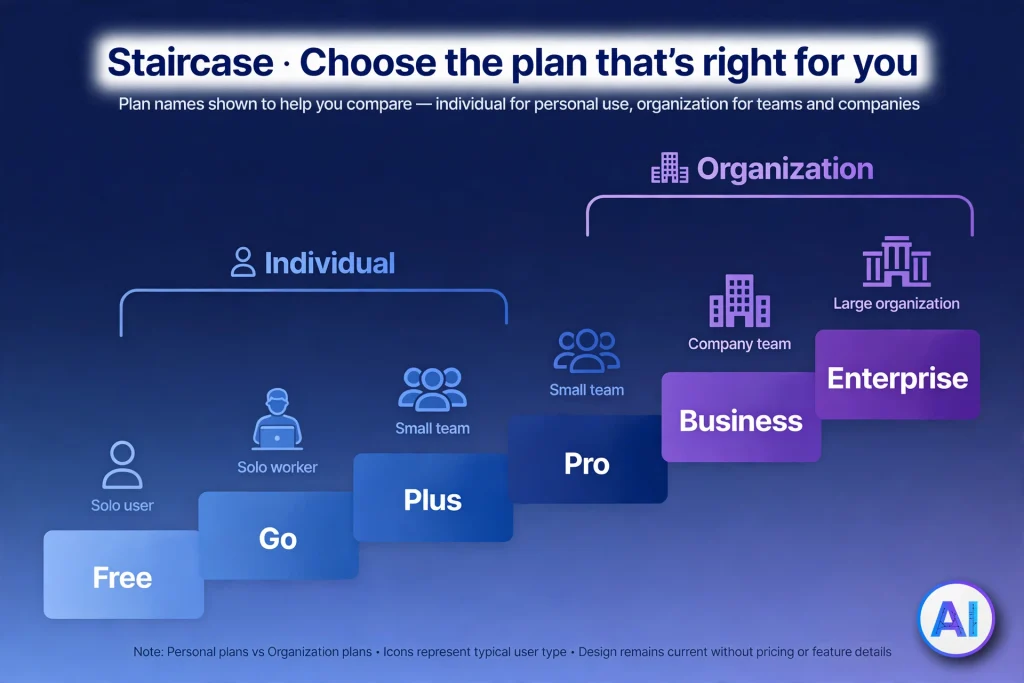
OpenAI’s pricing page lists Free, Go, Plus, Pro, Business and Enterprise. None is called “Professionals.” Anyone selling “ChatGPT Professionals” as a separate subscription is either using the phrase loosely or describing one of those plans. Treat ChatGPT Professionals as a description of users, and choose among the real plans using the comparison later in this guide.
Five Ways ChatGPT Professionals Get Access
- Free or Go accounts: personal logins with tighter caps; OpenAI says ads may appear.
- Plus or Pro accounts: personal subscriptions with higher limits and more tools.
- Business workspaces: a shared, admin-managed workspace for teams of two or more.
- Enterprise contracts: a sales-led workspace for larger or regulated organizations.
- The OpenAI API: a separate, token-billed product for developers building software.
The right route depends on team size, administration needs, privacy requirements and budget. A pricier plan is not automatically better for every person.
How ChatGPT Professionals Work With It Day to Day
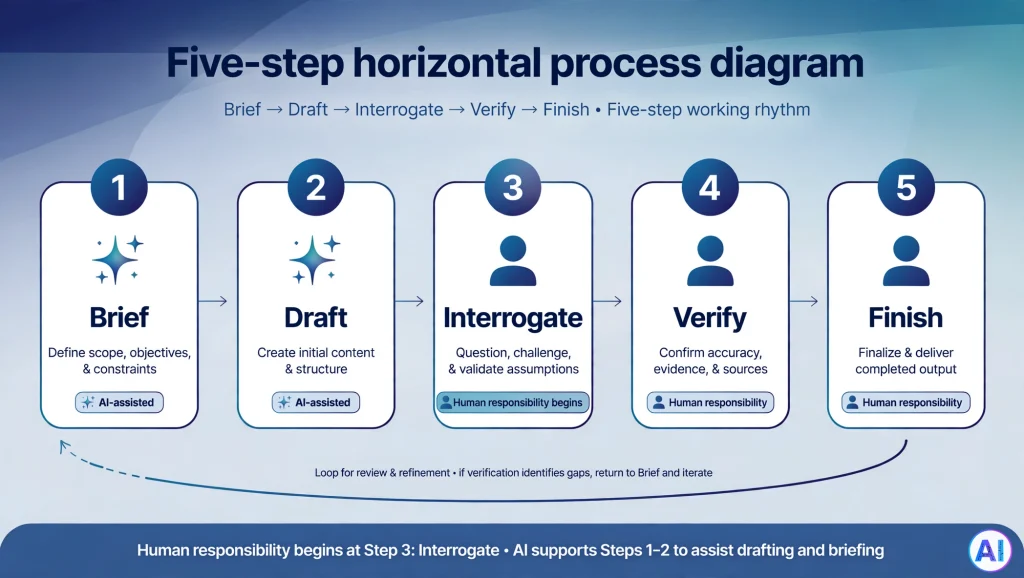
Most ChatGPT Professionals who get dependable results follow the same rhythm:
- Brief it like a colleague. State the task, audience, constraints and the source material.
- Draft fast. Let ChatGPT produce a rough structure or first version.
- Interrogate it. Ask what it assumed, what is missing, and what you should verify.
- Verify against real sources. Check figures, names, citations and policy details yourself.
- Finish in your own voice. Edit, approve and take responsibility for the final version.
Steps three to five are what separate ChatGPT Professionals from casual users. The tool accelerates steps one and two; you own the rest.
Why ChatGPT Suits Modern Workplaces
For ChatGPT Professionals, the appeal is speed on routine text work, not magic. Knowledge work is full of text-shaped chores: summarizing, reformatting, rewording, outlining. ChatGPT handles those chores quickly, which frees attention for decisions only you can make. It is also available on web, iOS and Android, so ChatGPT Professionals can use the same assistant at a desk or between meetings. None of this guarantees time savings; measure your own for a month before assuming any.
Best ChatGPT Features for Professionals
Availability below, which ChatGPT Professionals should confirm on their own accounts, follows OpenAI’s plan-comparison page on October 31, 2026. Features roll out gradually, so your account may differ.
| Feature | Practical professional use | Plan note | Limitation |
|---|---|---|---|
| File uploads and data analysis | Question a spreadsheet or long document | Limited on Free; listed on Go and above | Check every calculation |
| Advanced reasoning | Multi-step planning and tricky analysis | Listed from Plus upward | Slower; model names change often |
| Deep research | Cited, multi-source briefings | Limited on Free and Go; included on Plus and above | Availability varies by plan and country |
| Projects and shared projects | Keep briefs and files for one engagement together | Listed on all plans | Sharing scope depends on workspace settings |
| Custom GPTs | Reusable assistants with fixed instructions | Creating them is listed from Go upward | Sharing within a workspace suits Business or Enterprise |
| Apps and company knowledge | Reach Slack, Google Drive, SharePoint and similar tools | Apps on all plans; company knowledge on Business and Enterprise | Access follows admin and provider permissions |
| Canvas | Revise a draft or code section in place | Listed on all plans | Not a full editing suite |
| Record mode | Transcribe and summarize meetings | Plus, Pro, Business, Enterprise; macOS desktop app | Get consent; works best in English |
| Excel and Google Sheets extensions | Spreadsheet help inside familiar tools | Limited on Free and Go; included Plus and above | Verify outputs |
| Voice and image generation | Dictation, quick visuals | Limited or expanded by plan | Review images before publishing |
Deep research, for example, plans a report, cites sources and lets you edit the plan before it starts, according to OpenAI’s help center, and its app connections use read actions only. Our ChatGPT Canvas guide covers the editing workspace in detail.
ChatGPT Professionals by Role
Each role below shows how ChatGPT Professionals can apply one pattern: the task, how ChatGPT helps, an example, and what a human must review.
Business Professionals
Planning, reports, presentations and proposals eat hours. ChatGPT can turn rough notes into a structured outline or a one-page brief. Example: an operations lead pastes last month’s incident notes and asks for a summary organized by cause. Human review: confirm every figure and decide what the business actually does next.
Freelancers and Consultants
Solo workers handle sales, delivery and admin alone. ChatGPT can draft a scope statement, tidy a service description or prepare a status update. Example: a freelance designer converts call notes into a project timeline. Human review: pricing, legal terms and commitments must be yours.
Marketing Professionals
ChatGPT helps with campaign brainstorming, content calendars, audience questions, SEO topic planning and social variants. Example: a marketer asks for twelve angles on one product launch, then picks three. Human review: brand voice, claims, compliance and genuine audience data.
Writers and Content Creators
Useful for outlines, headline options, proofreading and repurposing a long piece into shorter formats. Example: a newsletter writer asks for tighter paragraphs while keeping their voice. Human review: edit heavily, verify facts, check originality, and never publish unchecked output.
Developers and Programmers
ChatGPT explains unfamiliar code, suggests tests, drafts documentation and helps debug. Example: a developer pastes an error trace and asks for likely causes ranked by probability. Human review: run, test and security-review everything; never ship generated code untested.
Researchers and Analysts
It can organize notes, summarize documents you supply, propose analysis questions and outline a report. Example: an analyst asks for patterns worth investigating in an uploaded survey file. Human review: sources, calculations and conclusions, because fabricated citations are a documented risk.
Managers and Team Leaders
Agendas, update drafts, task write-ups and first versions of performance summaries are natural fits. Example: a manager asks for a neutral rewrite of a tense team announcement. Human review: fairness, accuracy about individuals and anything HR-sensitive.
Office Employees and Administration
Routine emails, document summaries, formatting help and spreadsheet formulas suit ChatGPT well. Example: an office coordinator turns a messy supplier thread into a three-line status. Human review: names, dates, amounts and whether the policy cited actually exists.
Everyday Tasks: Reports, Email, Meetings and Projects
Data Analysis and Reports
ChatGPT Professionals who handle data can upload a file, ask for a data-quality check before any conclusions, then request charts or a draft narrative. Ask ChatGPT to show its calculations, then recompute the key numbers yourself. Treat reported patterns as leads to investigate, not findings.
Professional Emails and Communication
State the relationship, the goal and the tone, then paste the thread. ChatGPT drafts quickly, but it may promise things your company cannot deliver, so read every sentence as if you wrote it.
Meetings and Documentation
Record mode can transcribe and summarize a meeting; OpenAI’s help page says it runs on the macOS desktop app and that you must follow the consent laws where you and the other participants are. Prefer your own transcript for sensitive discussions, and check action items against what was actually agreed.
Project Management
ChatGPT can break a goal into milestones, flag dependencies and draft a risk list. It does not know your team’s real capacity, so validate dates and owners with the people involved.
Ten Prompts ChatGPT Professionals Can Copy
Replace every bracket with your own facts. For general prompt-writing technique, see our ChatGPT prompts guide; the templates below are role-specific and not interchangeable with those. No prompt guarantees a perfect result, so ChatGPT Professionals should review everything.
1. Decline Extra Scope Politely (Email)
Draft a reply to the client message below. I must decline the added work without damaging the relationship. Offer two paths: a paid change order or a later phase. Tone: warm, firm, under 140 words. List any assumption you made.
"""[client message]"""
Use when: a client keeps expanding a project. Provide: the message, your contract limits and rates. Improve: ask for a blunter and a gentler version, then merge them.
2. Turn Figures Into a Report Narrative
I will paste this quarter's figures for [team]. Write a one-page narrative with three parts: what changed, likely reasons clearly labelled as hypotheses, and risks. Do not invent causes I did not provide. List every number you used.
"""[figures]"""
Use when: summarizing results for leadership. Provide: the figures and last period’s comparison. Improve: recalculate each listed number yourself.
3. Build a Meeting Agenda
Create a [45]-minute agenda for a meeting about [decision]. Attendees: [roles]. Give each item an owner, a time box and the outcome needed (decide, inform or discuss). Mark what could be handled by email instead.Use when: meetings lack direction. Provide: the decision and attendees. Improve: ask which item to cut if time runs short.
4. Draft a Project Plan
Break this goal into milestones: [goal], due [date], team of [size]. Output a table with task, dependency, suggested owner role and effort estimate, then a risk list with mitigations. Ask me five questions before finalizing.Use when: starting a project. Provide: deadline, team and constraints. Improve: answer its questions, then ask it to challenge the critical path.
5. Plan Market Research
I need to understand [market question] for [audience]. Propose three hypotheses, the evidence that would confirm or reject each, and a source list by type (reports, filings, interviews). Flag anything that needs a paid or primary source.Use when: before a deep research task. Provide: the decision the research supports. Improve: feed the plan to deep research and open every citation.
6. Shape a Presentation Storyline
Design a [10]-slide storyline for [audience] to persuade them to [decision]. For each slide give a one-sentence headline, the evidence required and the likely objection. Keep one message per slide.Use when: slides feel scattered. Provide: audience, decision and your raw material. Improve: ask for the three toughest questions the audience might raise.
7. Build a Content Calendar
Create a four-week LinkedIn calendar for [company], audience [role]. Use three content pillars: [pillars]. Per post: format, hook, call to action and the source we should cite. Avoid claims I cannot support.Use when: planning a month ahead. Provide: pillars, past top posts, brand rules. Improve: replace invented sources with real ones.
8. Audit Data Before Analyzing It
Before any analysis, inspect the attached file: list columns, missing values, duplicates, odd outliers and unit inconsistencies. Then propose five questions the data can answer and two it cannot. Show your calculations.Use when: a new dataset arrives. Provide: the file and its business context. Improve: spot-check three rows manually.
9. Write a Client Proposal
Using these discovery notes, draft a proposal: problem, approach, deliverables, timeline, assumptions and exclusions. Leave price and legal terms as [PLACEHOLDER]. Mark any gap in my notes instead of filling it.
"""[notes]"""
Use when: converting a call into a document. Provide: notes and past proposals. Improve: have it list what the client could misread.
10. Work Through a Workplace Problem
Problem: [describe]. Constraints: [list]. Give three root-cause hypotheses, three options with trade-offs in a decision matrix, and the cheapest test for each hypothesis. Do not recommend until I confirm the criteria.Use when: a recurring issue resists easy answers. Provide: facts, not opinions of colleagues. Improve: confirm the criteria, then ask for a recommendation.
ChatGPT Plans for Professional Users
OpenAI lists prices per user in US dollars; local currency, tax and app-store fees can change what you pay. ChatGPT subscriptions are separate from API billing, and ChatGPT Professionals who build software should budget for each separately.
ChatGPT Plus vs Pro vs Business vs Enterprise
| Plan | Intended users | Main benefits | Collaboration and administration | Pricing |
|---|---|---|---|---|
| Free | Trying ChatGPT, occasional tasks | Core chat with limited uploads, images and research | Personal account; no admin tools | $0 |
| Go | Heavy free users on a budget | More messages, uploads and image creation than Free | Personal account | $8 per month in the US; may vary by market |
| Plus | Individuals using ChatGPT regularly for work | Advanced reasoning, expanded deep research, tasks, projects, custom GPTs | Personal account | $20 per month, billed monthly |
| Pro | Individuals who regularly exhaust Plus limits | Higher usage tiers, Pro reasoning model, maximum research and agent allowances | Personal account | From $100 per month; higher tiers exist |
| Business | Teams of two or more | Shared workspace, company knowledge, apps, no training on workspace data by default | Admin console, roles, SAML SSO, shared GPTs and projects | Standard seat $25 monthly or $20 per month billed annually; Premium seat $125 or $100 |
| Enterprise | Large or regulated organizations | Expanded context, custom retention, residency options | SCIM, role-based access, key management, analytics, SLAs | Custom quote |
Plus, Pro, Business and Enterprise are listed without ads, while Free and Go may show them. Business needs two paid seats at minimum, and OpenAI’s help center caps one Business subscription at 200 seats.
Which Plan Suits ChatGPT Professionals?
- Occasional use: Free or Go.
- A solo professional with daily use: Plus first; read whether ChatGPT Plus is worth it before paying.
- A freelancer constantly hitting limits: compare the Pro tiers against your measured usage.
- A team needing shared projects and central billing: our ChatGPT Business guide explains seats and costs.
- Legal, security or residency demands: read our ChatGPT Enterprise explainer and talk to OpenAI sales.
For a full breakdown, see our guide to every ChatGPT plan and price. Pro tiers have changed repeatedly this autumn, so confirm the current ones on OpenAI’s pricing page. ChatGPT Professionals should choose the plan their actual work justifies, not the most expensive.
Benefits of ChatGPT for Professionals
For ChatGPT Professionals, the gains look like this:
- Faster first drafts for emails, reports and outlines.
- Brainstorming support when you need options, not answers.
- Research assistance that points you toward sources worth reading.
- Better organization of messy notes and threads.
- Learning on demand, such as explaining an unfamiliar concept or code snippet.
- Relief from repetitive tasks, like reformatting or summarizing.
- Flexible workflows across devices and tools.
These benefits reach ChatGPT Professionals only when instructions are clear and the output gets checked.
Limitations and Risks of Professional AI Use
OpenAI’s own help center says ChatGPT can produce fabricated quotes, studies and citations, can sound confident while wrong, and has a knowledge cutoff unless search tools are used. For ChatGPT Professionals, that translates into concrete risks:
- Incorrect or invented information, including references that do not exist.
- Outdated facts, unless search or deep research is used and its links are opened.
- Context misunderstandings, because ChatGPT knows only what you give it.
- Plan restrictions, since features and limits vary by plan, region and rollout.
- Quality that tracks your prompt, so vague instructions produce vague work.
ChatGPT does not replace professional judgment, expertise or accountability.
Privacy and Security Considerations for ChatGPT Professionals
Consumer and organizational plans are not governed identically. On individual plans, OpenAI says it may use your content to train models unless you turn off “Improve the model for everyone” under Settings, then Data controls. It also says feedback you submit with a thumbs up or down can make the whole conversation eligible for training even after you opt out. Temporary Chats are not used for training and are deleted from OpenAI’s systems after 30 days.
For ChatGPT Professionals on Business, Enterprise or Edu, OpenAI says it does not train on prompts, responses or files by default. Its Enterprise privacy page describes AES-256 encryption at rest and TLS 1.2 or higher in transit. Custom retention settings are listed for Enterprise, not Business. None of this makes a workspace risk-free: a colleague can still paste something sensitive or share a link too widely.
Before ChatGPT Professionals paste anything, they should work through these habits:
- Read your employer’s AI policy first, and follow client contracts and data-protection law.
- Share the minimum. Remove names, account numbers, credentials and trade secrets you do not need to include.
- Treat client files, employee records, financial data and customer records as restricted until policy says otherwise.
- Secure your account with a strong, unique password and multi-factor authentication.
- Verify facts, calculations and citations before relying on them.
- Test generated code before it touches production.
- Keep the decision with a human who can be held accountable.
How ChatGPT Professionals Can Get Better Results at Work
- Give context early. A role, audience and goal beat any clever phrasing.
- Supply source text instead of asking ChatGPT to recall facts.
- Ask for assumptions and uncertainty alongside the answer.
- Work in projects so recurring briefs do not need retyping, a habit many ChatGPT Professionals adopt early.
- Iterate one change at a time, then save wording that works.
- Check the model picker. OpenAI’s model names changed repeatedly this year, so confirm what your account shows.
- Keep a verification habit, because that is what separates ChatGPT Professionals from risky users.
Is ChatGPT Worth It for Professionals?
For ChatGPT Professionals who draft, summarize or plan most days, a paid individual plan often pays for itself in avoided friction, though only you can measure that. A practical test: use Free for a week, note every limit you hit, then subscribe for one billing month and track what actually changed. If a team is already pasting company data into personal accounts, a Business workspace may address a bigger problem than productivity. If the work is occasional, staying free is perfectly sensible.
Frequently Asked Questions
What does ChatGPT Professionals mean?
It describes people who use ChatGPT in their jobs. It is not an official OpenAI plan; the real plans are Free, Go, Plus, Pro, Business and Enterprise.
How can professionals use ChatGPT at work?
ChatGPT Professionals typically use it for drafting, summarizing, brainstorming, planning, code explanation and data questions, followed by human verification.
Is ChatGPT useful for business professionals?
Yes, for reports, proposals, planning and communication, provided someone checks figures and decisions. Results vary by task and prompt quality.
Which ChatGPT plan is best for professionals?
For ChatGPT Professionals, it depends on usage, team size and privacy needs: Plus for many individuals, Business for teams, Enterprise for large or regulated organizations.
Is ChatGPT Plus enough for professional work?
For many solo ChatGPT Professionals, yes, though limits still apply. Heavy daily users may consider Pro; confirm limits on OpenAI’s pages.
What is the difference between ChatGPT Pro and Business?
Pro is a personal plan with higher usage; Business is a shared workspace with admin controls, a two-seat minimum and no training on workspace data by default.
Can ChatGPT help with professional writing?
Yes, for outlines, editing and tone, but you must fact-check, edit and confirm originality.
Can developers use ChatGPT for coding?
Yes, for explanations, debugging ideas, documentation and tests; always review and test the result.
Is ChatGPT safe for confidential professional information?
Not automatically. ChatGPT Professionals should note that policies differ between individual and business plans, and your employer’s rules apply. Share the minimum and avoid restricted data without approval.
Can ChatGPT replace human professionals?
No. It assists with tasks; expertise, judgment and accountability remain human.
Conclusion
ChatGPT Professionals get value by delegating the first draft and keeping the last word. Choose a plan that matches real needs, protect confidential data, verify what matters, and keep your name behind the final result. Used that way, ChatGPT Professionals gain a capable assistant without surrendering the judgment clients and employers actually pay for.
Sources and References
Pricing, plan and feature details were checked October 31, 2026. Some Help Center pages were read through search excerpts; re-open each link before publishing.
- ChatGPT Plans (pricing and feature comparison). OpenAI. https://chatgpt.com/pricing/. Supports plan list, feature availability by plan, ads note, Business and Enterprise features.
- ChatGPT Business overview. OpenAI Help Center. https://help.openai.com/en/articles/8792828-chatgpt-business-overview. Supports Standard and Premium seat prices.
- Managing billing and seats in ChatGPT Business. OpenAI Help Center. https://help.openai.com/articles/8792536. Supports two-seat minimum and seat pricing.
- Sign up for ChatGPT Business. OpenAI Help Center. https://help.openai.com/articles/8980713. Supports seat prices and the two-seat requirement.
- ChatGPT Business: General FAQ. OpenAI Help Center. https://help-lb.openai.com/en/articles/8542115-chatgpt-business-general-faq. Supports the 200-seat cap and the Team-to-Business rename.
- About ChatGPT Pro tiers. OpenAI Help Center. https://help.openai.com/en/articles/9793128-about-chatgpt-pro-tiers. Supports Pro tier pricing and usage multiples; the page changes often.
- What is ChatGPT Plus? OpenAI Help Center. https://help.openai.com/en/articles/6950777-what-is-chatgpt-plus. Supports Plus price and monthly billing; API billed separately.
- Introducing ChatGPT Go. OpenAI. https://www.openai.com/blog/introducing-chatgpt-go. Supports Go’s US price, localized pricing and ad-free Plus and Pro.
- Enterprise privacy at OpenAI. OpenAI. https://openai.com/enterprise-privacy/. Supports no-training-by-default, encryption and SOC 2 statements.
- How your data is used to improve model performance. OpenAI Help Center. https://help.openai.com/en/articles/5722486-how-your-data-is-used-to-improve-model-performance. Supports individual-plan training, opt-out, feedback behavior and business-plan defaults.
- Data Controls FAQ. OpenAI Help Center. https://help.openai.com/en/articles/7730893-data-controls-faq. Supports Temporary Chat behavior and the opt-out path.
- Deep research in ChatGPT. OpenAI Help Center. https://help.openai.com/en/articles/10500283-deep-research-in-chatgpt. Supports deep research workflow, citations, read-only app use and availability caveats.
- ChatGPT Record. OpenAI Help Center. https://help.openai.com/en/articles/11487532-chatgpt-record. Supports plan availability, macOS-only limit, consent and language notes.
- Does ChatGPT tell the truth? OpenAI Help Center. https://help.openai.com/en/articles/8313428-does-chatgpt-tell-the-truth. Supports hallucination, fabricated citation and verification guidance.