
ChatGPT Canvas is a dedicated workspace inside ChatGPT for creating, editing, and improving long-form writing or code with AI assistance. Instead of regenerating an entire chat response after every small change, ChatGPT Canvas lets you work on a draft or code file directly, select the exact part you want to improve, and ask for a focused revision.openai+1
This guide explains what ChatGPT Canvas is, how it differs from an ordinary ChatGPT conversation, how to open it, and how to use its writing and coding tools. You will also learn how it handles Python execution, where it is available, when it is better than normal chat, and what limitations you should keep in mind.
If you are new to ChatGPT, it helps to first understand how ChatGPT works and what GPT stands for. Once you understand the basics, this workspace becomes much easier to use for real projects.
Table of Contents
What Is ChatGPT Canvas?
ChatGPT Canvas is a collaborative editing environment designed for work that changes over time. OpenAI describes Canvas as a space where you and ChatGPT can create, edit, and refine writing or code together, rather than treating every request as a one-time chat answer.openai+1
In ordinary ChatGPT, the response appears as chat text. If you want one paragraph shortened or one function debugged, you often need to explain the change and wait for a new version. ChatGPT Canvas is different because your document or code stays in a workspace while ChatGPT remains available for instructions, explanations, and revisions.openai+1
This workspace is best understood as a shared draft. You can write in it, paste your own material, highlight a section, ask for a change, review the suggestion, and continue editing. This makes it useful for articles, reports, emails, study notes, scripts, and coding projects that require repeated improvement.openai
Why This Workspace Matters
Canvas matters because it reduces unnecessary repetition. Instead of asking ChatGPT to rewrite a 1,000-word article because one introduction feels weak, you can select only that introduction and request a targeted improvement.
This approach gives you more control. The Canvas interface keeps the surrounding context visible, so the AI can revise a selected part without losing sight of the full document or code file.openai+1
ChatGPT Canvas vs Chat
The biggest difference between ChatGPT Canvas and a normal chat is the working surface. A normal chat is conversation-first, while this workspace is document-first.
| Aspect | Ordinary ChatGPT chat | ChatGPT Canvas |
|---|---|---|
| Best for | Quick questions and short answers | Documents, code files, and iterative editing |
| Output format | Chat response | Editable writing or coding workspace |
| Editing style | Usually requires a new prompt or regenerated response | Select text or code and request a focused change |
| Coding workflow | Code appears in a chat message | Code can be reviewed, commented on, and, for Python, executed |
| Best use case | One-off explanation or brainstorming | Articles, reports, scripts, and ongoing projects |
Canvas is not always necessary. For a quick definition, a short email, or a simple comparison, ordinary chat may be faster. But when you expect to revise the same material several times, this workspace is usually the better choice.openai+1
How to Open and Use ChatGPT Canvas
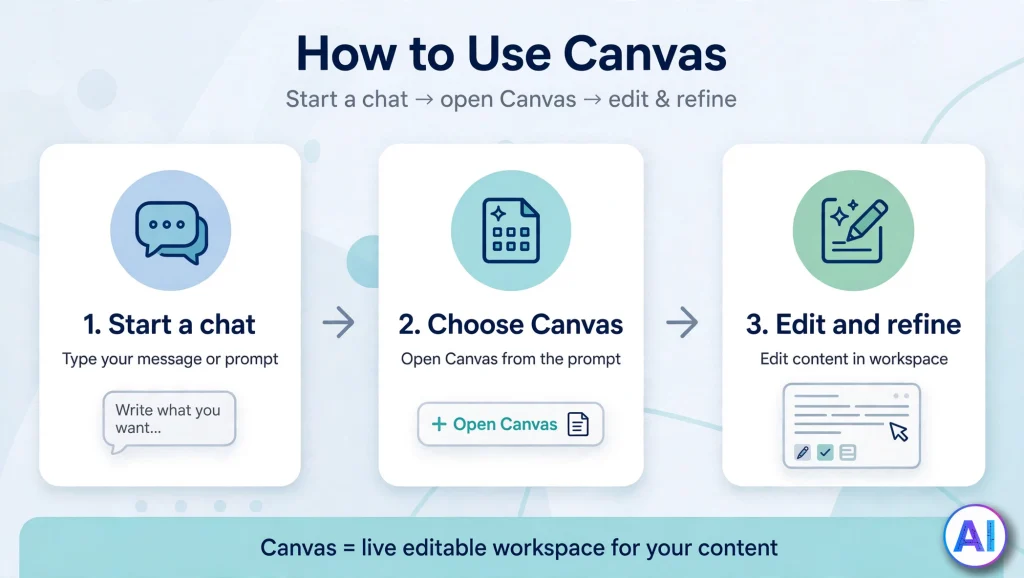
There are two common ways to start using ChatGPT Canvas: ask ChatGPT for a writing or coding task, or open Canvas manually from an existing conversation. OpenAI says Canvas can open automatically when it detects a suitable task, and users can also access it through the available tools in a chat.openai+1
Open Canvas for a New Project
- Sign in to ChatGPT.
- Start a new chat.
- Describe a writing or coding task, such as “Create a 700-word blog outline about AI productivity tools” or “Write a Python script that renames files in a folder.”
- If this workspace is available for the task, select the Canvas option when prompted or choose it from the tools menu.
- Start editing the draft or code directly in the workspace.
Open Canvas in an Existing Chat
If ChatGPT has already created a long response, you may be able to move it into this workspace:
- Open the conversation containing the draft or code.
- Look for the Canvas or editing-workspace option in the response or tools menu.
- Select it to transfer the content into the workspace.
- Highlight the sentence, paragraph, or code block you want to improve.
- Tell ChatGPT exactly what to change.
The exact button placement can vary by device, account type, app version, and product updates. If you do not see this option, update the app or try the web version before assuming the feature is unavailable.
Writing Features
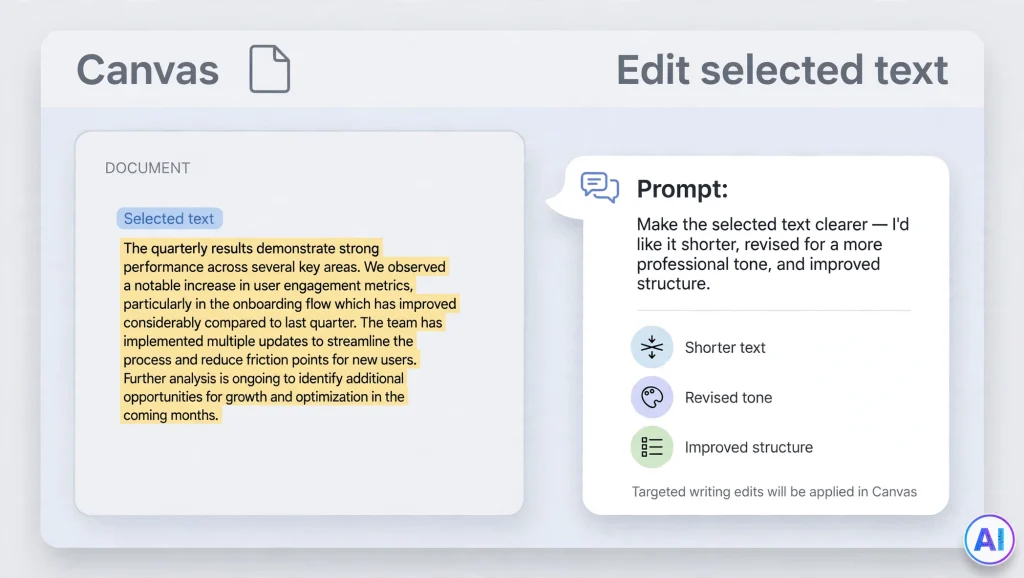
This workspace is especially helpful for writing tasks that require structure, revision, and selective editing. Rather than replacing an entire article because one paragraph feels weak, you can highlight that paragraph and ask for a focused improvement.openai
Edit Selected Text
Select a sentence, paragraph, or section, then ask for a specific revision. For example:
- “Make this paragraph more concise.”
- “Rewrite this introduction for a beginner audience.”
- “Make this product description sound more confident.”
- “Shorten this section without losing the main point.”
This targeted method is one of the main advantages of the Canvas interface. You keep the rest of the document intact while improving only the part that needs work.
Adjust Length and Tone
You can also ask for broader writing adjustments. Make a draft longer, shorter, simpler, more formal, or more persuasive. The best results come from clear instructions, such as “Reduce this section from 300 words to 180 words while keeping the examples.”
Improve Structure and Clarity
For articles, reports, emails, study notes, and proposals, this workspace can help you organize ideas. You might ask it to:
- Add clearer headings.
- Turn scattered notes into an outline.
- Identify repeated points.
- Suggest a stronger conclusion.
- Convert a rough draft into a structured brief.
Canvas does not replace editorial judgment. It works best when you provide a clear goal, audience, format, and tone. For more writing-focused AI workflows, see AI Vibes’ ChatGPT guides.
ChatGPT Canvas for Coding
ChatGPT Canvas is also designed for coding work. You can generate code, paste your own code, ask for explanations, request comments, add logs, review potential issues, and translate code between supported languages.openai+1
Review and Improve Code
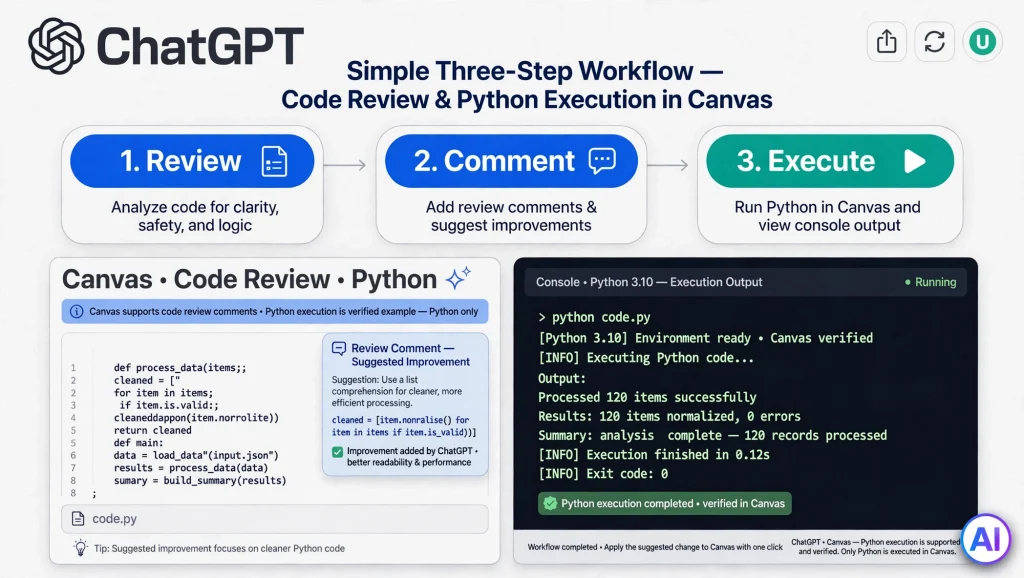
Canvas can provide inline suggestions to improve code. You can ask it to review a function, identify likely bugs, improve naming, or explain what a block of code does. OpenAI’s launch documentation specifically lists code review, adding logs, and adding comments among its coding features.openai
A practical coding workflow looks like this:
- Paste a script or ask ChatGPT to create one.
- Select the function or section you want examined.
- Ask, “Review this code for errors and explain each suggestion.”
- Accept, edit, or reject the proposed changes.
- Ask for comments or logs if you need more context.
Add Comments and Debugging Help
Comments make code easier for other people—and your future self—to understand. Canvas can add explanatory comments, insert print statements to help trace values, and provide feedback on errors.openai
For example, if a Python function returns an unexpected result, you can select it and ask: “Add comments explaining each step, then suggest likely reasons the output is wrong.”
Port Code to Another Language
Canvas can translate code into languages including JavaScript, TypeScript, Python, Java, C++, and PHP, according to OpenAI’s Canvas announcement. This can help when adapting a prototype, converting a tutorial example, or moving logic between projects.openai
However, translated code should always be tested. A language conversion may preserve the logic but still require changes for libraries, syntax versions, security practices, or platform-specific behavior.
Can ChatGPT Canvas Run Python?
Yes. OpenAI’s current documentation says you can execute Python code directly in ChatGPT Canvas by selecting the Execute button. The output appears in a console at the bottom of the workspace.
This makes it useful for small experiments, learning exercises, data-cleaning scripts, and debugging simple Python programs. You can write or paste Python code, run it, inspect the console output, and ask ChatGPT to help fix errors.
Important Python Limitations
Code execution in this workspace is currently documented for Python only. OpenAI says it plans to extend access to other programming languages in the future, but you should not assume JavaScript, Java, C++, or PHP can be executed here today.
Also, Canvas is not a full development environment. It may not suit large repositories, complex dependencies, database connections, proprietary SDKs, GPU-heavy workloads, or production testing. For those tasks, use a local editor, an IDE, or a dedicated cloud development environment.
ChatGPT Canvas Availability
ChatGPT Canvas was initially introduced as a beta for ChatGPT Plus and Team users, with Enterprise and Edu access following shortly afterward. That historical detail should not be confused with current availability.openai
OpenAI’s release notes later stated that Canvas was made available by default to all users, both Free and Paid. The current OpenAI Help Center also documents Python execution within this workspace.help.openai
That said, availability can still depend on several factors:
- The ChatGPT platform you are using, such as web, desktop, iOS, or Android.
- Your account type and plan. For plan differences, see Is ChatGPT Pro worth it?
- Workspace or organization settings in Business, Enterprise, or Edu accounts.
- Regional rollout and interface updates.
- Whether the specific model or feature supports this workspace in your account.
If Canvas does not appear, check for an app update, try ChatGPT on the web, start a new conversation, or ask directly: “Open this draft in Canvas.” If it still does not appear, the feature may be unavailable for your current account, device, workspace, or rollout group.
When to Use ChatGPT Canvas
This workspace is most valuable when the task involves iteration. Use it when you expect to revise, reorganize, debug, or build on the same material over several steps.
Best Use Cases
- Blog posts and articles: Draft an outline, expand sections, tighten paragraphs, and revise tone without losing the document structure.
- Emails and proposals: Refine a message for a specific audience while keeping the full context visible.
- Study notes: Turn lecture notes into summaries, explanations, practice questions, or revision sheets.
- Code learning: Ask for explanations, comments, and debugging help while working through a script.
- Python experiments: Run short Python snippets and review console output in the same workspace.
- Technical documentation: Improve explanations, add examples, and make instructions easier to follow.
When Ordinary Chat Is Better
A normal chat is often better for quick tasks that do not need a persistent document. Examples include defining a term, comparing two tools, brainstorming titles, summarizing a short passage, or asking a one-line coding question.
Use this workspace when you want to preserve and improve a working draft. Use ordinary chat when you simply need an answer.
Common Mistakes to Avoid
Canvas works best when you treat it as a collaborative editing process rather than a one-click content generator.
- Do not accept every suggestion automatically. Review factual claims, code behavior, security implications, and tone before using the result.
- Do not use this workspace as your only code-testing environment. Python execution is helpful, but production code needs proper testing, version control, and security review.
- Do not paste confidential information unnecessarily. Remove passwords, API keys, client data, private customer records, and other sensitive material before sharing code or documents with any AI tool.
- Do not expect every language to run here. Current official documentation identifies Python as the supported execution language.
- Do not rely on Canvas for final formatting. Export or copy the finished material into your document editor, CMS, or code repository for final review.
Troubleshooting
If Canvas is not working as expected, start with the simplest checks.
- Update ChatGPT. Older app versions may not show newer interface options.
- Try the web version. Web and desktop experiences can differ from mobile apps.
- Start a new chat. A long or unusual conversation may not trigger this workspace automatically.
- Ask explicitly. Try: “Open this in Canvas” or “Create a Canvas for this code.”
- Check account and workspace settings. Managed workspaces can restrict tools or model access.
- Check the task type. This workspace is intended for writing and coding projects, not every type of ChatGPT request.
If the option remains missing, OpenAI’s help documentation and release notes are the best places to confirm whether your plan, platform, or region currently supports it.help.openai
Frequently Asked Questions
What is ChatGPT Canvas?
ChatGPT Canvas is a collaborative workspace for writing and coding projects. It lets you edit a document or code file directly while asking ChatGPT for targeted revisions, explanations, and improvements.openai+1
How do I open ChatGPT Canvas?
Start a ChatGPT conversation and either ask for a writing or coding task or select Canvas from the available tools. It may also open automatically when ChatGPT detects a suitable task.openai+1
Is ChatGPT Canvas free to use?
OpenAI’s release notes say it became available by default to all users, including Free and Paid plans. However, specific features, models, and platform availability can vary.help.openai
Can ChatGPT Canvas help with coding?
Yes. It supports code review, inline suggestions, comments, logs, debugging assistance, and code translation between several languages.openai
Can I edit text directly in ChatGPT Canvas?
Yes. You can select text and ask ChatGPT to revise it, or make edits yourself in the workspace. This is one of Canvas’s main advantages over ordinary chat.openai
Can ChatGPT Canvas run Python code?
Yes. OpenAI documentation says Python code can be executed here through the Execute button, with output displayed in a console. Code execution is currently documented for Python only.
How is ChatGPT Canvas different from a normal ChatGPT conversation?
A normal chat produces responses in conversation form. ChatGPT Canvas provides an editable workspace where you can revise selected sections of a document or code file while keeping the full project in view.openai+1
Conclusion
ChatGPT Canvas is best understood as a practical middle ground between a chatbot and a document editor. It keeps ChatGPT’s drafting and coding assistance while giving you a workspace where you can revise selected text, improve code, add comments, and run supported Python code.
Use this workspace when you are building something that will change: an article, report, study guide, email sequence, script, or coding project. Use ordinary chat when you need a fast answer. For the best results, give ChatGPT a clear audience and goal, make targeted edits, review every suggestion, and test code in an appropriate development environment before relying on it.
Sources and References
- OpenAI — Introducing Canvas
- OpenAI Help Center — What is the Canvas feature in ChatGPT and how do I use it?
- OpenAI Help Center — ChatGPT release notes
- OpenAI Academy — Canvas resource