
ChatGPT Image is the everyday name for the picture-making tools inside ChatGPT, which OpenAI officially calls ChatGPT Images. You describe what you want, and ChatGPT returns an image in the same conversation. You can also upload a photo and ask for a change, highlight part of a picture to fix it, or draw a rough layout for the model to finish. As of late October 2026, the newest version is ChatGPT Images 2.5, which OpenAI released on September 8, 2026.
This guide covers what the feature does, how to use it, how to write prompts that waste fewer attempts, what the current limits look like, and what to consider before uploading personal photos. Anything that depends on a plan or may change is labeled with where the information came from.
Table of Contents
What Is ChatGPT Image?
Put simply, ChatGPT Image is the part of ChatGPT that produces and modifies pictures instead of text, which is why many people call it the ChatGPT image generator. OpenAI’s Help Center describes ChatGPT Images as a way to create new images and edit existing ones, either from inside a normal chat or from a dedicated Images area.
How the Feature Got Here
The name has changed enough times that older tutorials can mislead you:
- Early on: Image creation in ChatGPT was associated with DALL·E. OpenAI’s current help article now tells people who ask about DALL·E to use ChatGPT Images instead.
- December 2025: OpenAI introduced a refreshed ChatGPT Images built on a model it called GPT Image 1.5.
- April 2026: ChatGPT Images 2.0 arrived.
- September 8, 2026: ChatGPT Images 2.5 began rolling out to all ChatGPT tiers, ChatGPT Work and Codex, on desktop, mobile and web.
If a tutorial tells you to hunt for a DALL·E button, it was probably written for an earlier era of the product. For the history of ChatGPT itself, see our guide on when ChatGPT was released.
How ChatGPT Image Generation Works in Practice
You do not need engineering knowledge to use the tool, but one idea saves frustration: each result is a fresh render. When you request a small change, the model produces a new picture guided by the old one rather than nudging pixels the way a photo editor does. Earlier reviews noticed that this can introduce small differences in areas you never mentioned. OpenAI says version 2.5 is better at changing only what you ask and keeping other details stable across repeated revisions. That is the company’s own claim, and its announcement did not include an independent head-to-head benchmark.
Speed is the other headline. OpenAI reports up to 50% lower latency than Images 2.0. If you want the broader picture of how a chatbot turns your words into output, our plain-English explainer on how ChatGPT works covers the basics.
How to Create an Image With ChatGPT, Step by Step
To create images with ChatGPT, OpenAI’s help documentation describes two entry points: ask for an image in any conversation, or open the Images section and type your prompt there. The feature is available on web, iOS and Android.
On the Web
- Sign in to ChatGPT, then start a chat or open the Images page at chatgpt.com/images.
- Describe the picture. Name the subject, the setting and the look. The next section explains how.
- Read the result critically. Ask whether it fits your purpose, not just whether it matches your wording.
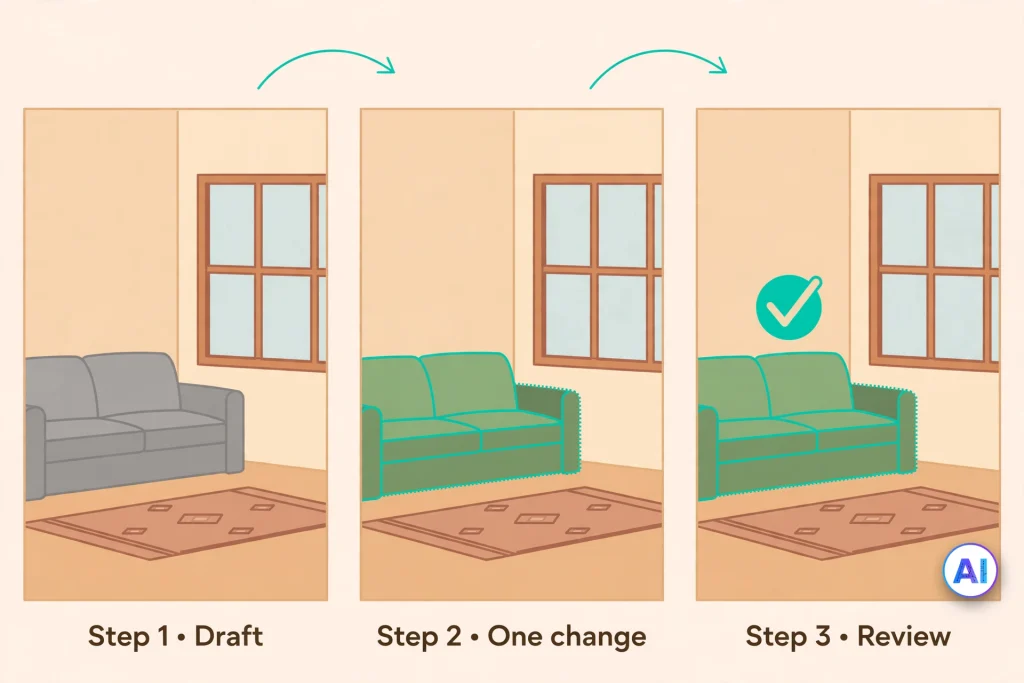
- Request one change at a time, such as “same scene, but make the sky overcast.”
- Find your work later under Images. OpenAI says every image you create is saved there automatically.
On Your Phone
The mobile app uses the same conversation. Tap a generated image to open the editor, choose Edit, and describe the change in the conversation panel, as OpenAI’s help article explains.
Write Better Prompts for ChatGPT Image Generation
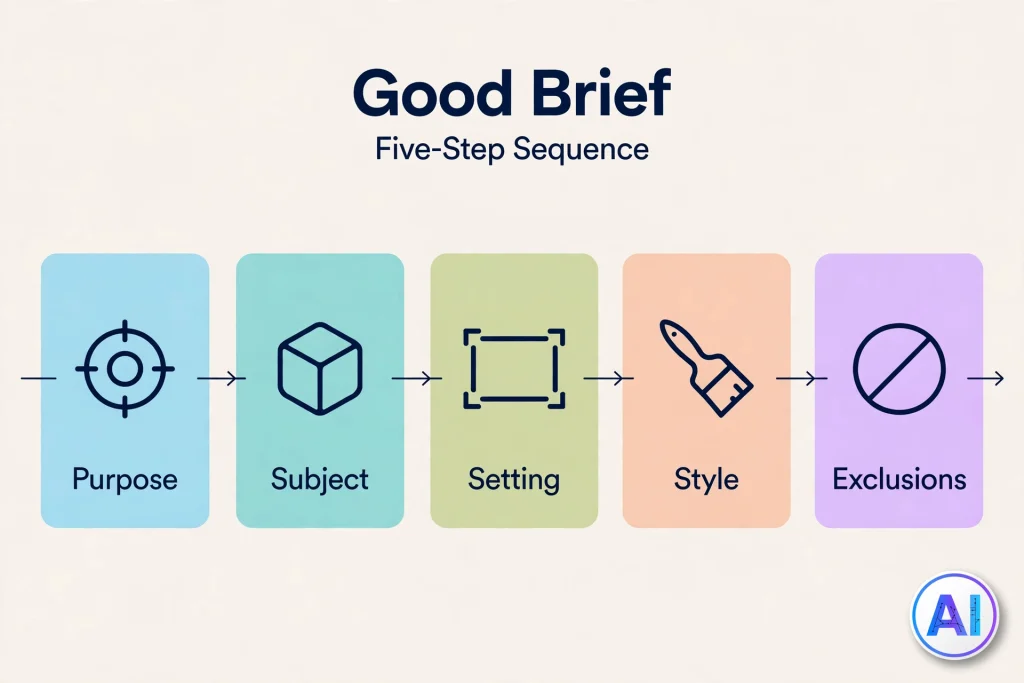
A prompt works like a brief handed to a freelance illustrator. The less the illustrator must guess, the fewer revisions you need. This five-part checklist is an editorial framework, not an official OpenAI formula:
- Purpose: where the image will be used, such as a blog header, a classroom slide or a product mockup.
- Subject: the main thing in the frame, with its distinguishing details.
- Setting and composition: background, camera distance, orientation (tall, wide or square) and any empty space you need for text.
- Style and mood: photographic, flat vector or watercolor, plus lighting and palette.
- Exclusions: anything that must not appear, such as extra text, logos or clutter.
Prompt Examples You Can Adapt
Brand graphic. “Create a square logo for a neighborhood coffee roaster called Ember & Oak. Flat vector style, one oak leaf whose center forms a small flame, dark green and burnt orange on a cream background. No gradients and no text except the name.”
Why it works: it fixes the format, style, palette and the only text element, so little is left to improvisation.
Photographic scene. “A ceramic mug on a pale wooden table beside a rainy window, soft morning light, shallow depth of field, photographic look. Leave the left third of the frame empty for a headline.”
Why it works: the empty-space instruction prepares the picture for a text overlay added later.
Classroom visual. “An illustration of the water cycle for children aged 9 to 11. Friendly flat shapes, large readable labels, exactly five labels: evaporation, condensation, precipitation, collection, runoff.”
Why it works: listing the text gives you something concrete to proofread.
For more portrait-style ideas, our ChatGPT caricature guide offers eight more original prompts to adapt.
Edit and Refine an Existing Image
Describe the Change in Words
To edit images with ChatGPT, start simple. Upload a photo or pick one ChatGPT made, then state the change and the boundary. “Replace the grey sofa with a green one, and keep the lighting, rug and window exactly as they are” gives the model both a target and a limit.
Highlight a Region With Select
OpenAI’s help page documents two ways to edit, and one is using Select to highlight the area you want changed. It helps when words struggle to point at a location, such as one chair among several.
Comment Directly on the Image
Images 2.5 added comments you can place on a spot in the picture to request a targeted change, according to coverage of OpenAI’s launch. In practice, comments suit small fixes to a single object, while whole-image changes such as lighting or overall style fit better in a normal message.
Start From a Reference Photo
OpenAI says version 2.5 does a better job of keeping the identity and distinctive features of subjects from reference photos across different settings and styles. When you use a reference, say what must remain: “Keep the dog’s markings and expression.” Treat the output as a recreation to inspect, not a guarantee.
Sketch First, Then Describe
Typing @Sketch opens a drawing canvas inside ChatGPT, where a rough layout can guide the final image. Templates such as Poster and Merch offer starting formats, and sharing an image can now include the prompt behind it so others can adapt the idea. These are the newest additions, so interface wording may change.
Which Control Should You Reach For?
| If you want to… | Try this first |
|---|---|
| Change one object | Select, or a comment on the image |
| Change the overall mood or style | A plain-language message |
| Control the layout before generating | @Sketch |
| Keep a person or pet recognizable | A clear reference photo plus “keep” instructions |
| Start a flyer or merchandise mockup | A template |
Availability, Plans and Usage Limits
OpenAI states that ChatGPT Images 2.5 is rolling out across all ChatGPT tiers, so a free account can try the feature. The harder question is how many images you can make. OpenAI describes allowances in words rather than numbers. A third-party review that read OpenAI’s pricing page in early October 2026 reports limited image creation on Free, more on Go, more complex and accurate creation on Plus, and unlimited on Pro, with the Pro allowance subject to abuse guardrails. I could not open the pricing page directly for this guide, so confirm the wording at the source.
Two practical consequences follow. First, any fixed daily number you read elsewhere is probably a leftover from a temporary 2025 limit or an older model. Second, a limit message and a content refusal are different problems: waiting solves the first, but not the second.
OpenAI’s help documentation also indicates that images can be made in ChatGPT Work and Codex, where usage is tracked separately from ordinary chat. If you are deciding whether a paid tier pays for itself, our breakdowns of whether ChatGPT Plus is worth it and whether ChatGPT Pro is worth it compare what each plan includes. Developers who want image generation inside their own apps use separate API models, GPT-Image-2.5 Flare and GPT-Image-2.5 Sunburst, which are billed independently of a ChatGPT subscription.
Troubleshooting Common Problems
ChatGPT Says You Have Reached a Limit
Wait for the reset time ChatGPT shows, if it gives one. OpenAI does not publish a general window. Opening extra accounts to bypass a cap is not a fix, because OpenAI’s terms reportedly restrict circumventing rate limits.
The Text in the Image Is Wrong
Shorten the wording, put the exact words in quotation marks, and ask for large, high-contrast lettering. Then proofread character by character. For prices, dates or legal wording, add the text afterward in a design tool.
An Edit Changed Too Much
Narrow the instruction. Use Select or a comment, restate what must stay the same, and change only one thing per request.
The Style Drifts Between Images
Keep related images in one conversation and reuse the same style sentence in every prompt.
Your Request Was Refused
A refusal reflects OpenAI’s usage policies, not a technical fault. Rephrase around your genuine purpose instead of trying to disguise the request.
You Cannot Find an Earlier Image
Open Images on web or mobile. OpenAI says your creations are saved there.
Known Limitations to Plan Around
Text remains the usual weak spot. Reviewers judge version 2.5’s text rendering better but not solved. One hands-on comparison by Decrypt found legibility slips in a shop scene and a wrong date in a generated infographic. The same comparison split six test categories with Google’s Nano Banana 2, which won three while ChatGPT Images 2.5 took the rest, so the best tool still depends on the job. For a broader comparison of the two assistants, see is Gemini better than ChatGPT.
Two more cautions apply. Generated lettering is part of the picture, not an editable text layer. And the speed gains come from OpenAI’s own figures, so measure them against your own workflow.
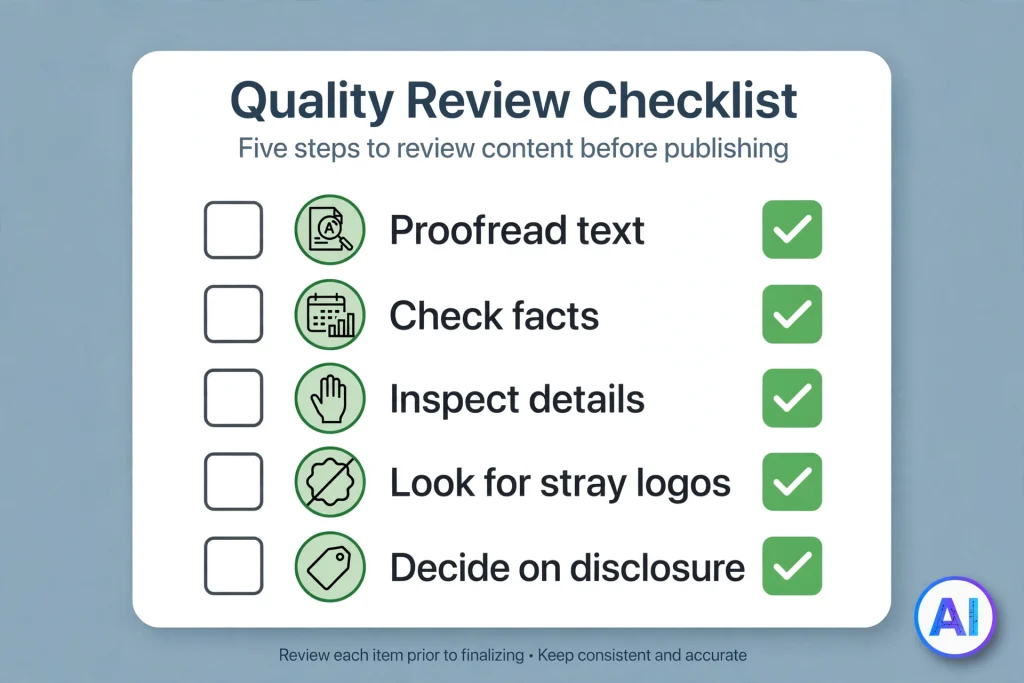
A Quick Review Checklist Before You Share
- Proofread every word in the image.
- Check any dates, numbers or facts in infographics.
- Inspect faces, hands and small objects for oddities.
- Look for invented logos or stray text.
- Decide whether to disclose that the image is AI-generated.
Privacy and Safety When Uploading Photos
Treat every upload as data you are handing to a service. If you use ChatGPT through a team workspace, our guide to what ChatGPT Business includes explains that plan. OpenAI’s ChatGPT FAQ says temporary chats do not appear in history, do not use or create memories, and are not used to train models. For ordinary chats, review your data controls in settings. Avoid uploading identity documents, other people’s photos without consent, or pictures of children.
OpenAI also says it applies safety checks to prompts and generated images, plus C2PA metadata and invisible watermarking to help identify AI-made images. Metadata can be stripped when files are re-saved, so it is a helpful signal, not proof.
Conclusion
ChatGPT Image is best understood as a conversation about a picture, not a single button. Start with a specific brief, change one thing at a time, use Select, comments or Sketch when words fall short, and proofread anything that contains text. Check your plan’s allowance on OpenAI’s own pages, because the limits are described loosely and can change. Used with those habits, ChatGPT Images 2.5 can turn rough ideas into usable visuals faster than earlier versions.
FAQ
Is ChatGPT Image free to use?
Yes, within limits. OpenAI says ChatGPT Images 2.5 is rolling out across all tiers, including free accounts, but it does not publish exact image counts for each plan.
What is the newest ChatGPT image model?
As of October 29, 2026, it is ChatGPT Images 2.5, released on September 8, 2026. Its API counterparts are GPT-Image-2.5 Flare and GPT-Image-2.5 Sunburst.
Can ChatGPT edit my own photo?
Yes. OpenAI’s help article says you can upload an existing image and describe the change you want. Results are re-created images, so inspect details carefully.
How many images can I create per day?
OpenAI does not publish a single daily number. Limits vary by plan and can change, so rely on the message ChatGPT shows and on OpenAI’s pricing page.
Why does the text in my image look wrong?
Image models can still misspell or distort words, especially in long or dense text. Use short, quoted wording and proofread, or add critical text in a design tool.
Can I use ChatGPT images commercially?
I could not verify the current rules for this guide, so check OpenAI’s Terms of Use and usage policies before using images in commercial work.
Can I tell whether an image came from ChatGPT?
Often, but not always. OpenAI says it adds C2PA metadata and invisible watermarking, but metadata can be lost when images are edited or re-saved.
Sources and References
All sources were consulted on October 29, 2026. Where a page could not be opened directly, it is marked as read through a search excerpt.
OpenAI
- OpenAI Help Center, “Images in ChatGPT” (ChatGPT Images FAQ): https://help.openai.com/en/articles/11084440-chatgpt-images-faq (read through search excerpts; direct fetch was blocked)
- OpenAI Developer Community, “Introducing GPT Images 2.5 in the API and ChatGPT”: https://community.openai.com/t/introducing-gpt-images-2-5-in-the-api-and-chatgpt/1395897
- OpenAI on X, Images 2.5 announcement: https://x.com/OpenAI/status/2097394956457623964
- OpenAI Help Center, “What is ChatGPT: FAQ”: https://help-lb.openai.com/en/articles/12677804-what-is-chatgpt-faq
- OpenAI Help Center, “Using Codex with your ChatGPT plan”: https://help.openai.com/en/articles/11369540
- OpenAI, “The new ChatGPT Images is here” (December 2025, Chinese-language edition): https://openai.com/zh-Hans-CN/index/new-chatgpt-images-is-here/
News, analysis and hands-on coverage
- Unite.AI, “OpenAI Releases ChatGPT Images 2.5 With Sketch and Two New API Models”: https://www.unite.ai/openai-releases-chatgpt-images-2-5-with-sketch-and-two-new-api-models/
- Neowin, “OpenAI fires back with ChatGPT Images 2.5…”: https://www.neowin.net/news/openai-fires-back-with-chatgpt-images-25-as-microsoft-rapidly-closes-the-image-ai-gap/
- TechRepublic, “OpenAI Launches ChatGPT Images 2.5 With Sketch and Precise Editing”: https://www.techrepublic.com/article/news-openai-chatgpt-images-2-5-sketch-editing/
- TestingCatalog, “OpenAI launches ChatGPT Images 2.5 with faster editing”: https://www.testingcatalog.com/openai-launches-chatgpt-images-2-5-with-faster-editing/
- MLQ.ai, “OpenAI rolls out ChatGPT Images 2.5 across all ChatGPT tiers”: https://mlq.ai/news/openai-rolls-out-chatgpt-images-25-across-all-chatgpt-tiers/
- Decrypt, “ChatGPT Images 2.5 vs Nano Banana 2”: https://decrypt.co/377998/chatgpt-images-2-5-vs-nano-banana-2-review
- eesel, “ChatGPT Images 2.5 review”: https://www.eesel.ai/blog/chatgpt-images-2-5-review
- Atlas Cloud, “GPT Image 2.5 Text Rendering: 4 Tests That Catch Costly Copy Errors”: https://www.atlascloud.ai/hi/blog/tips/gpt-image-2.5-text-rendering
- Zapier, “ChatGPT image generation: How it works and how to get the best results”: https://www.zapier.com/blog/chatgpt-image-generation
- PixVerse, “GPT Image 2 Review: Prompt Guide and Use Cases in 2026”: https://pixverse.ai/en/blog/gpt-image-2-review-and-prompt-guide
- izzedo chat, “How to Get Past the ChatGPT Image Limit, and What Won’t Work” (third-party reading of OpenAI’s pricing page): https://www.izzedo.chat/blog/chatgpt-image-limits
- Wikipedia, “GPT Image” (model chronology): https://en.wikipedia.org/wiki/GPT_Image