

In this article
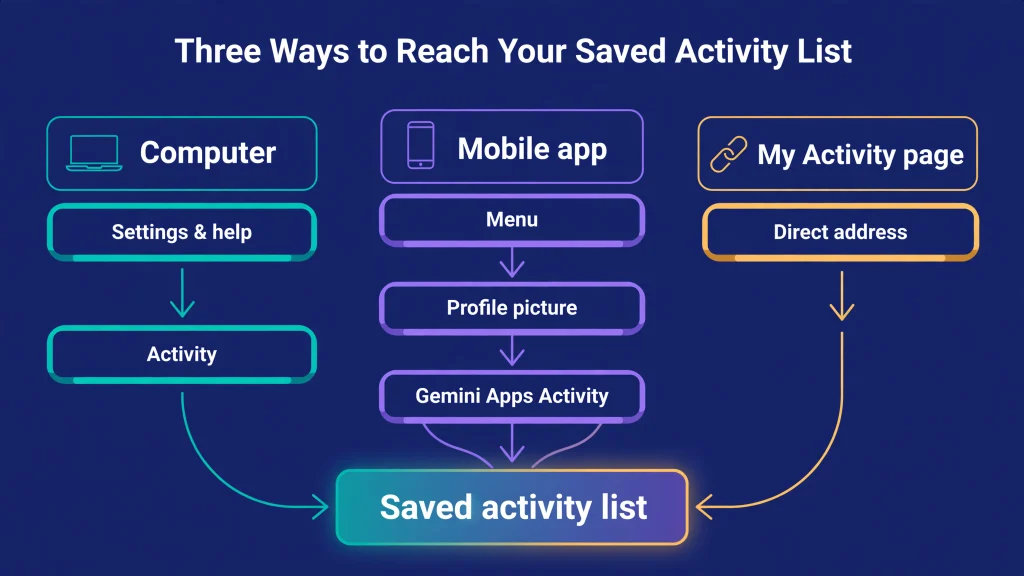
Gemini apps activity is the saved record of your conversations and related interactions with Gemini when you are signed in to a personal Google Account and Google’s activity-saving setting is on. That setting is now labeled Keep Activity, while the page where you read, delete and schedule the clean-up of those entries is still called Gemini Apps Activity. On a computer, you reach it through Settings & help, then Activity, inside Gemini. On any device, you can also open myactivity.google.com/product/gemini.
Two things make this topic harder than it needs to be. Google renamed the on/off switch in August 2025, so many older tutorials still tell you to toggle “Gemini Apps Activity,” while today’s switch carries a different label. And the setting is only one of several places where Gemini-related data can live, which means switching it off does not behave like a master delete button. This guide was checked against Google’s Gemini Apps Help pages and Gemini Apps Privacy Hub on November 11, 2026, and it separates what Google documents from what is merely my reading of those documents. If you are still deciding which assistant to use, our comparison Is Gemini Better Than ChatGPT? covers features; this article stays on settings and privacy.
Table of Contents
What Is Gemini Apps Activity?
Gemini apps activity is the history Google stores in your Google Account about how you use Gemini, provided you are signed in and Keep Activity is on. Google’s own help page describes it in nearly those terms: when you are signed in and the setting is on, Google stores your Gemini Apps activity in your Google Account, and you can review prompts, delete entries and turn the setting off from My Activity.
The word “Apps” in the name is broader than it sounds. Google uses “Gemini Apps” as an umbrella for the consumer Gemini experiences: the web app at gemini.google.com and browser sidebars, the Gemini mobile apps on Android and iOS, the Mac app, Gemini in Android Auto, and several others that vary by region. Google’s list is about those consumer experiences. Developer products such as the Gemini API sit outside this article, and so does anything about the zodiac sign, Android’s app-usage statistics or Google Analytics.
Gemini Apps Activity vs. Keep Activity: Which Name Is Current?
In August 2025, Google announced it would rename the Gemini Apps Activity setting to Keep Activity, and said that anyone who already had the old setting switched off would find Keep Activity switched off too. Google’s announcement on its blog paired that rename with Temporary Chats and a personalization feature that learns from past chats.
Fifteen months later, Google’s help pages use both names. The toggle is called Keep Activity. The destination is still described as Gemini Apps Activity: the Android and iPhone app menus I found in Google’s instructions read “Gemini Apps Activity,” whereas the desktop path says “Activity.” A workable rule is to treat the two names as one system. Keep Activity is the switch, and Gemini Apps Activity is the list of saved items behind it. Menu labels differ by device and shift with updates, so follow the intent of each step rather than the exact wording.
How Gemini Apps Activity Works
When Keep Activity is on, Gemini stores your interactions with your Google Account, and you can inspect them in My Activity. When it is off, new chats stop appearing there. That is the whole mechanism behind gemini apps activity at a high level, yet several details change what the setting means in practice.
What Can Appear in Your Gemini Apps Activity
According to Google’s Privacy Hub, saved activity includes your chats and what you share with Gemini, such as uploads and screens you ask about. It also includes audio, Gemini Live videos and screenshares, your feedback, information from websites you visit with Gemini, product usage, and location information. What you actually see depends on the features you use and where you live.
A few specifics from Google’s documentation help you read the list:
- Gems: conversations with a Gem record which Gem was used.
- Gemini Live: transcripts, audio, uploaded files and any video or screen sharing you choose to share are saved if Keep Activity is on, and small icons mark entries that contain audio, screen-share frames or camera frames.
- Imported chats: memory and chats you import from other AI platforms are saved in your activity and are treated like your other Gemini Apps activity.
- Location: Google says precise device location is not stored in your activity, and that location data is coarsened to a general area of more than 3 square kilometers, with at least 1,000 users, before it is stored.
What the Setting Does Not Control
Keep Activity is powerful, but it has edges. Google’s Privacy Hub says your Gemini settings do not control how chats are processed to create anonymized data that improves Google services. It also says that even with Keep Activity off, Google still uses your chats to respond to you and to protect Google, its users and the public, including with help from human reviewers. And because Gemini Apps settings are separate from other Google settings, changing them leaves those other settings alone.
Gemini in Chrome shows another edge: Google says information from sites you visit with that feature is stored in Gemini Apps Activity when Keep Activity is on, while page content is also logged to your account temporarily and does not appear in the activity list.
How to Check Gemini Apps Activity
You can check Gemini apps activity in three ways, and all of them lead to the same underlying record for a personal account. You need to be signed in to the Google Account you actually use with Gemini.
On a Computer
- Go to gemini.google.com.
- Click Settings & help, then Activity.
- Alternatively, open myactivity.google.com/product/gemini directly.
In the Gemini Mobile App (Android, iPhone and iPad)
- Open the Gemini app.
- Tap Menu on the left, then your profile picture or initial.
- Tap Gemini Apps Activity.
In a Mobile Browser
- Go to gemini.google.com on your phone or tablet.
- Tap Menu at the top, then Settings & help, then Activity.
- Or visit myactivity.google.com/product/gemini.
Reading the Entries You Find
Entries in gemini apps activity are grouped by day. For conversations with Gems, the Gem you used is noted. For Gemini Live, an audio icon means the entry includes audio, a screen-sharing icon means it includes video frames of your shared screen, and a video icon means it includes frames from your camera stream. Select Details on such an entry to view or download that data.
If you expected to see a conversation and it is missing, jump to the troubleshooting section below, because the cause is often a Temporary Chat, a period when Keep Activity was off, or a different Google Account.
How to Turn Gemini Apps Activity Off (or Back On)
Turning gemini apps activity off means switching Keep Activity off. For adults the setting starts out on, so the switch is yours to flip.
- Open your activity page using any path in the previous section.
- Near the top, click or tap On.
- Choose Turn off or Turn off and delete activity.
To turn it back on, open the same page, select Off, review the disclosures that appear, and confirm.
Google flags three consequences. First, even with the setting off, your conversations are saved with your account for up to 72 hours so Google can provide the service and process feedback, and that activity does not appear in your activity list. Second, Gems you create are still saved, but chats with Gems are not. Third, connected apps are limited, which is covered below.
Off, Delete and Auto-Delete Are Three Different Controls
People often expect one switch to do everything. Google separates the jobs, and keeping them apart prevents most mistakes.
| Control | What it does | What it does not do |
|---|---|---|
| Keep Activity off | Stops future chats from appearing in your activity and from being used to improve Google’s AI models, unless you send feedback | Does not stop the 72-hour retention, and Google’s pages describe it in terms of future chats |
| Delete activity | Removes the entries you select, including Live audio and transcripts tied to deleted entries | Does not delete a Gem, a public link, data in other Google services, or chats that human reviewers already processed |
| Auto-delete | Removes activity automatically once it is older than your chosen period (3, 18 or 36 months, with 18 as the default) | Google does not describe it as covering the 72-hour window or chats already reviewed by humans |
How to Delete Gemini Apps Activity
Open your gemini apps activity page and use the Delete menu above the list. Google lists these options:
- All time: removes everything in the list.
- Last hour or Last day: quick clean-ups of recent sessions.
- Custom range: a specific period you choose.
- A specific day: use the delete control next to that day’s heading.
- A single item: use the delete control beside the entry.
Google says that when you delete manually, or when activity is deleted automatically, it immediately begins removing the data from the product and its systems. It aims first to remove it from view, then runs a process designed to delete it from storage systems.
What Deleting Gemini Apps Activity Does Not Remove
Several things survive a deletion, and Google documents each of them:
- Deleting a conversation with a Gem does not delete the Gem itself.
- Deleting a shared chat does not delete its public link; you remove that separately.
- Deleting activity does not delete data held by other Google services or by connected apps that received it from Gemini.
- Chats that human reviewers have already processed are not removed, because they are no longer connected to your account. Google says they are kept for up to three years.
- Data tied to Tasks, such as remote browser and remote computer data, is managed in your Task settings rather than through this deletion.
- Source files you add to Gemini Notebook are saved in that product.
Setting Gemini Apps Activity to Delete Itself
By default, activity older than 18 months is removed automatically. To change that, open your activity page and select Deleting activity older than … months (or Choose an auto-delete option). Pick 3, 18 or 36 months, or choose Don’t auto-delete activity, then follow the prompts. A shorter period is the least effortful way to limit how much accumulates.
Does Turning Off Gemini Apps Activity Delete Existing Data?
Short answer: not on its own, as far as Google’s documentation shows. The off switch offers two outcomes, “Turn off” and “Turn off and delete activity,” which tells you the first one does not include deletion. Google’s descriptions of the off state are written about future chats: they will not appear in your activity and will not be used to train models unless you send feedback.
Nothing in the pages I read says the switch alone wipes earlier entries. My reading, then, is that older entries stay until you delete them or your auto-delete period removes them. If you want the history gone at the moment you switch the setting off, pick the combined option or delete the entries first. Remember the caveat from earlier: chats already reviewed by humans are retained for up to three years even after you delete activity.
How Long Does Google Keep Gemini Apps Activity?
Retention of gemini apps activity depends on which bucket your data falls into. These figures come from Google’s Privacy Hub and help pages as checked on November 11, 2026, and Google can change them.
| Situation | Documented retention |
|---|---|
| Keep Activity on, personal account | Auto-deleted after 18 months by default; you can choose 3 or 36 months, or no auto-delete |
| Keep Activity off, or a Temporary Chat | Retained with your account for 72 hours |
| Chats and feedback reviewed by human reviewers | Retained for up to 3 years, disconnected from your account |
| Some account-level data, such as how often you use Gemini Apps | Kept until you delete your Google Account |
| Data needed for security, fraud prevention, legal or financial purposes | May be retained longer |
| Work or school account | 18 months by default; administrators can set 3, 18 or 36 months, or turn history off |
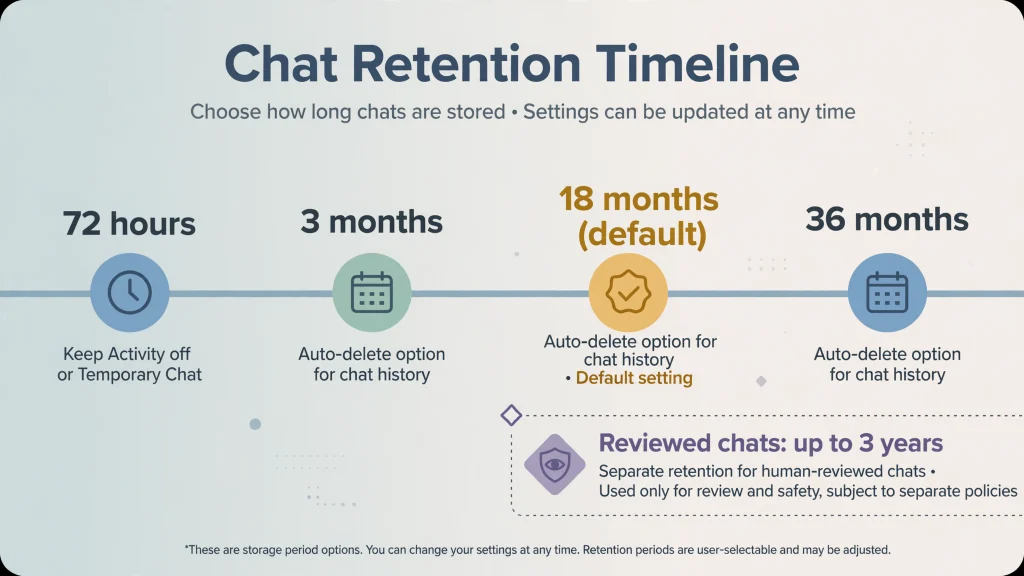
During the 72-hour window, Google says it uses the last 24 hours of your chat as context to respond to you, and keeps the rest so it is available in case of a potential system failure and to help protect Google, users and the public. If Keep Activity is off and you choose to send feedback, Google says it collects the feedback, the last 24 hours of your chats as context, and any content in them, such as uploads and data from connected apps.
Gemini Apps Activity and Privacy
Privacy questions deserve careful wording, because the honest answer has several layers. Turning off gemini apps activity changes how Google uses your future chats. It does not make Gemini private in an absolute sense, and deleting does not guarantee that no copy exists anywhere.
Human Review and Model Improvement
Google says a subset of chats is reviewed by human reviewers, including trained staff at its service providers, to improve its services and keep them safe. Chats are disconnected from your account before being sent to service providers. Google also says that when Keep Activity is on, your activity is used to provide, develop and improve its services, including training generative AI models.
Google’s advice is direct: if the setting is on, do not enter anything confidential that you would not want a reviewer to see or Google to use to improve its services. That advice is sensible even if you turn the setting off, since some processing continues regardless. For a parallel look at how another major assistant handles data, see our guide Is ChatGPT Safe?
Audio and Gemini Live videos and screenshares are handled separately. Google says they are not used to improve its services by default, and that opting in requires Keep Activity to be on.
Temporary Chats
A Temporary Chat is a one-off conversation. Google says these chats do not appear in your recent chats or in your gemini apps activity, are not used to personalize Gemini, and are not used to train its AI models. They are still kept with your account for 72 hours, for the reasons above.
Ads and Location
Google’s Privacy Hub states that Gemini Apps chats are not being used to show you ads and that Google will clearly communicate if that changes. On location, Gemini always collects a general area, from your IP address or the Home and Work addresses in your Google Account, and can use precise device location only with your permission.
Keep Your Expectations Calibrated
Settings reduce what is saved and how it is used. They do not erase every trace, and they cannot protect information you type into a chat that is then shared with another service. Check Google’s current documentation for your account, region and device before relying on any single toggle.
Gemini Apps Activity and Connected Apps
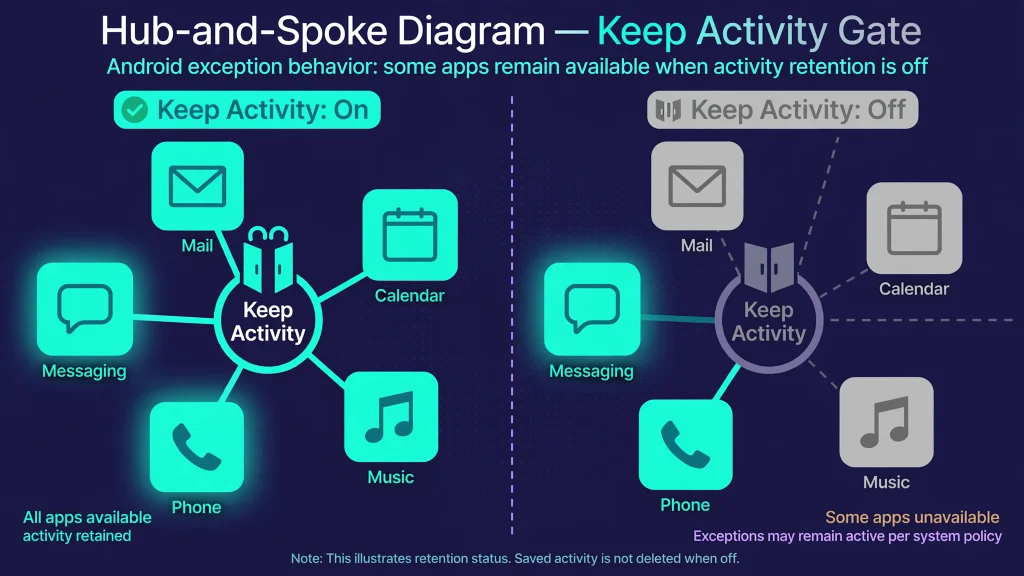
Connected Apps are the integrations that let Gemini work with Google apps and third-party services, for example summarizing Gmail messages, creating Calendar events, playing music, or making calls. Gemini apps activity and Connected Apps are linked in one important way: the setting acts as a gate.
According to Google’s Connected Apps help page, when Keep Activity is off, Connected Apps are not available on gemini.google.com, on iOS devices or on smartwatches. On Android, only Device assistance, Phone, Messages and WhatsApp are available, and Google’s activity-management help page also lists Gemini Notebook. Turning Keep Activity back on restores Gemini’s access to apps that were previously connected. Public information from Google Flights, Hotels, Maps and YouTube needs Keep Activity on as well, whereas public Search information remains available even when it is off or you are signed out.
A few more points keep the picture accurate:
- Which apps you see varies. The list changes with the Gemini app you use, your device, your country and your account type, so do not assume a friend sees the same options.
- Disconnecting is not deleting. Disconnecting an app does not delete anything from your activity, and deleting activity does not delete data that other apps already received.
- Third parties follow their own policies. Apps that receive data from Gemini retain it according to their own terms.
- Custom connections carry extra risk. Google says it does not control, monitor or secure custom Model Context Protocol servers you add yourself.
On a computer, you manage connections by opening the sidebar, selecting Customize (use More first if you do not see it), then Connectors.
Gemini Apps Activity vs. Other Google Activity Controls
Google keeps several activity-style controls, and they do not mirror each other. Google’s Privacy Hub says that if you change your Gemini Apps settings, other Google settings do not change, and that settings such as Search Services History, Web & App Activity and Timeline may keep saving location and other data as you use other Google services.
| Setting | What it relates to | Relationship to Gemini |
|---|---|---|
| Gemini Apps Activity (Keep Activity) | Saved Gemini interactions | Managed at myactivity.google.com/product/gemini or inside Gemini |
| Web & App Activity | Broader Google activity | Separate setting; unchanged when you change Gemini’s |
| Search Services History | Google Search-related activity | Separate setting named by Google; unchanged by Gemini’s |
| Timeline | Location history | Separate setting; unchanged by Gemini’s |
| Memory, Instructions for Gemini, Gems, public links | Personalization and shared items | Each has its own manager in Gemini |
There is one real connection. Google says that, in some regions, if you are 18 or older and upgrade to Gemini Apps, calling or texting history may be imported from Web & App Activity or Search Services History into Gemini Apps Activity, which helps with things like contact suggestions. And if you used Google Assistant to make calls or send messages, up to 90 days of that request history may be imported. After import, it is part of your Gemini record.
Gemini Apps Activity and Personalization
Depending on your settings and region, Google says it uses your saved gemini apps activity to personalize your experience. The feature that does this is now described as Memory: Gemini can reference chats in your Gemini Apps Activity and generate personalized insights from them. When it launched in August 2025, Google called it personal context. Google’s current pages say Memory may use sensitive information you shared in chats, so decide what you want in those conversations.
Your controls here are specific:
- To stop Gemini from using one past chat for personalization, delete that chat.
- To discuss something you do not want remembered, start a Temporary Chat.
- If you have Memory summary available, you can view, edit and delete what Gemini understands about you, add details, or switch it off.
- Separately, Instructions for Gemini (called Saved Info in some locations) remain until you delete them.
Google’s documents talk about providing, customizing and personalizing services. They do not describe a separate “recommendations” use, so I have not claimed one. Memory is one of several capabilities that tie Gemini into your Google account; our guide to the characteristics of Google’s Gemini AI covers the rest of what the assistant can do, including its Google app integrations.
Gemini Apps Activity for Work or School Accounts
Everything above about gemini apps activity assumes a personal Google Account. Google’s help page says that if you use Gemini Apps with a work or school account, your Gemini Apps Activity settings are controlled by your Google Workspace administrator, and you may not be able to change retention or even see how long chats are kept.
The documented differences:
- Keep Activity is on by default and can be turned off only by your Workspace administrator.
- Chat history is saved for 18 months by default; administrators can choose 3, 18 or 36 months, or turn history off.
- If your administrator turns on retention, you cannot change those activity settings.
- Clearing Gemini history inside a Workspace app does not affect what is saved in Gemini Apps Activity.
- In the Gemini mobile app, users with work or school accounts cannot delete chats or create public links.
- Android Work Profile users who open the Gemini mobile app are sent to the Gemini web app.
Data handling also depends on the license. In editions where Gemini is a core service with enterprise-grade protections, Google says chats and uploaded files are not reviewed by human reviewers or used to improve generative AI models. Where Gemini is only an additional service, Google says chats may be reviewed and used to improve its products. When something looks different from this guide, ask your administrator before assuming a fault.
Gemini Apps Activity Checklist: 5 Settings Worth Reviewing
You do not need to overhaul gemini apps activity to improve it. A few minutes with these five settings covers most of what matters.
- Keep Activity. Decide whether you want a saved history at all. Remember the trade-off: connected apps depend on it, and it governs whether future chats can be used to improve Google’s models.
- Auto-delete period. The default of 18 months may be longer than you want. Three months is the shortest option.
- Audio and Live improvement setting. Google says it is off by default and requires Keep Activity to be on. Confirm it matches your intent if you use Gemini Live.
- Connected Apps. Open the Connectors page and disconnect anything you no longer use, especially custom connections.
- Memory and Temporary Chats. Check what Gemini has remembered, and use a Temporary Chat for anything you would rather not carry forward.
Troubleshooting Gemini Apps Activity
The steps below for gemini apps activity problems are practical suggestions rather than documented guarantees, apart from the facts attributed to Google.
I Cannot Find Gemini Apps Activity
Menus differ. On a computer it is under Settings & help, labeled Activity. In the mobile app, it sits behind your profile picture and is labeled Gemini Apps Activity. If neither works, open myactivity.google.com/product/gemini directly, and update the Gemini app, since Google’s own troubleshooting for work and school mobile errors starts with the latest app version.
A Conversation Is Missing from My Activity
Check the likely causes in order. Was it a Temporary Chat? Was Keep Activity off at the time? Did auto-delete remove it because it was older than your chosen period? Were you signed in to another Google Account? For Gems, remember that when Keep Activity is off, chats with Gems are not saved at all.
Delete Options Are Missing or Not Working
Confirm you are on a personal account. With a work or school account, an administrator controls the settings, and the mobile app does not allow chat deletion. If the page loads but a deletion seems stuck, refresh it, try the web version on a different device, and be aware that Google describes deletion as removal from view first, followed by deletion from storage.
The Settings Look Different from a Guide
Interfaces and labels move. If a guide says “Gemini Apps Activity” is a toggle, look for Keep Activity instead. Treat any tutorial that predates August 2025 as historical.
I Am Signed In to the Wrong Account
Activity belongs to the Google Account used for the chat. Check the profile picture in the corner of the page, switch accounts there, and reopen the activity page. Avoid drastic fixes such as deleting or resetting an account; a wrong-account problem needs only a switch.
Final Thoughts
Gemini apps activity is best understood as two things sharing one name: a switch called Keep Activity and a saved history you can inspect. You can find that history in a minute, delete it by hour, day, range or item, and shorten how long it lingers with auto-delete. What you cannot do is treat any one control as a vanish button. The 72-hour window, human-reviewed chats and data held by other services all sit outside what deletion touches.
If you read only one paragraph, make it this one: choose whether you want a history, set an auto-delete period you can live with, use Temporary Chats for sensitive topics, and prune Connected Apps. Review gemini apps activity again whenever Google changes the interface, and check Google’s current Privacy Hub before making decisions that depend on exact retention details.
Frequently Asked Questions
What is Gemini Apps Activity?
Gemini Apps Activity is the saved history of your Gemini use in your Google Account. It appears in My Activity when you are signed in and Keep Activity is on, and it can include chats, uploads, feedback and, for Gemini Live, transcripts and other recordings.
Where can I find my Gemini Apps Activity?
On a computer, open gemini.google.com, select Settings & help, then Activity. In the mobile app, tap Menu, your profile picture, then Gemini Apps Activity. On any device, you can go to myactivity.google.com/product/gemini.
Is Gemini Apps Activity the same as Keep Activity?
They are two names for related parts of one system. Google renamed the setting from Gemini Apps Activity to Keep Activity in 2025, while the saved list is still called Gemini Apps Activity in places such as the mobile menu.
Does Gemini save my conversations?
With Keep Activity on, Gemini saves your chats to your account. With it off, or in a Temporary Chat, Google still keeps chats with your account for up to 72 hours, but they do not appear in your activity.
How do I delete Gemini Apps Activity?
Open your activity page, use the Delete menu, and choose All time, Last hour, Last day or Custom range. You can also delete a specific day or a single item. Deleting does not remove data held by other services or chats already reviewed by humans.
Can I turn off Gemini Apps Activity, and does that delete old chats?
You can turn it off by selecting On, then Turn off. That choice concerns future chats. Google separately offers Turn off and delete activity, and Google’s pages do not say the plain off switch deletes older entries.
How long does Gemini keep my activity?
For personal accounts with Keep Activity on, activity is auto-deleted after 18 months by default, and you can pick 3 or 36 months or no auto-delete. Chats from Keep Activity-off periods and Temporary Chats stay for 72 hours, and human-reviewed chats can be retained for up to three years.
Can Gemini Apps Activity be deleted automatically?
Yes. Set an auto-delete period of 3, 18 or 36 months, or choose not to auto-delete. The default is 18 months for personal accounts.
Is Gemini Apps Activity private?
It is tied to your Google Account and managed by you, but it is not private in an absolute sense. Google says a subset of chats may be reviewed by humans when Keep Activity is on, and some processing continues even when it is off. Avoid entering confidential information.
Why can’t I change Gemini Apps Activity on my work or school account?
Your Workspace administrator controls those settings. Keep Activity is on by default and only an administrator can turn it off or change retention, so contact your administrator if you need a different setup.
Sources & References
Reviewed on November 11, 2026. Google can change interfaces, retention periods and privacy terms, so confirm current details on the pages below.
- Google Gemini Apps Help, “Manage & delete your activity in Gemini Apps”: https://support.google.com/gemini/answer/13278892 (desktop, Android and iPhone/iPad versions consulted).
- Google Gemini Apps Help, “Gemini Apps Privacy Hub” (Privacy Questions section showed “Last updated: October 26, 2026”; the Gemini Apps Privacy Notice showed October 13, 2026): https://support.google.com/gemini/answer/13594961
- Google Gemini Apps Help, “Use & manage Connected Apps in Gemini”: https://support.google.com/gemini/answer/13695044
- Google Gemini Apps Help, “Use Gemini Apps with a work or school Google Account”: https://support.google.com/gemini/answer/14620100
- Google, “Gemini adds Temporary Chats and new personalization features” (blog post announcing the Keep Activity rename, August 2025; historical context): https://blog.google/products-and-platforms/products/gemini/temporary-chats-privacy-controls/
- 9to5Google, “Gemini app rolling out ‘Temporary Chat’ and ‘personal context'” (August 13, 2025; secondary coverage of the rename): https://9to5google.com/2025/08/13/gemini-personal-context/
 Daniel Carter

1 comment